Adding booking object
After setup environment you are ready to create booking object posts - this is what users will book on the site. When editing a post you will see the special meta field "Select category to setup other post fields" – this selector transforms the post template according to the settings of the selected booking category.
Navigate to Ba Book Everything → Add New Booking Object admin menu to add or edit booking objects.
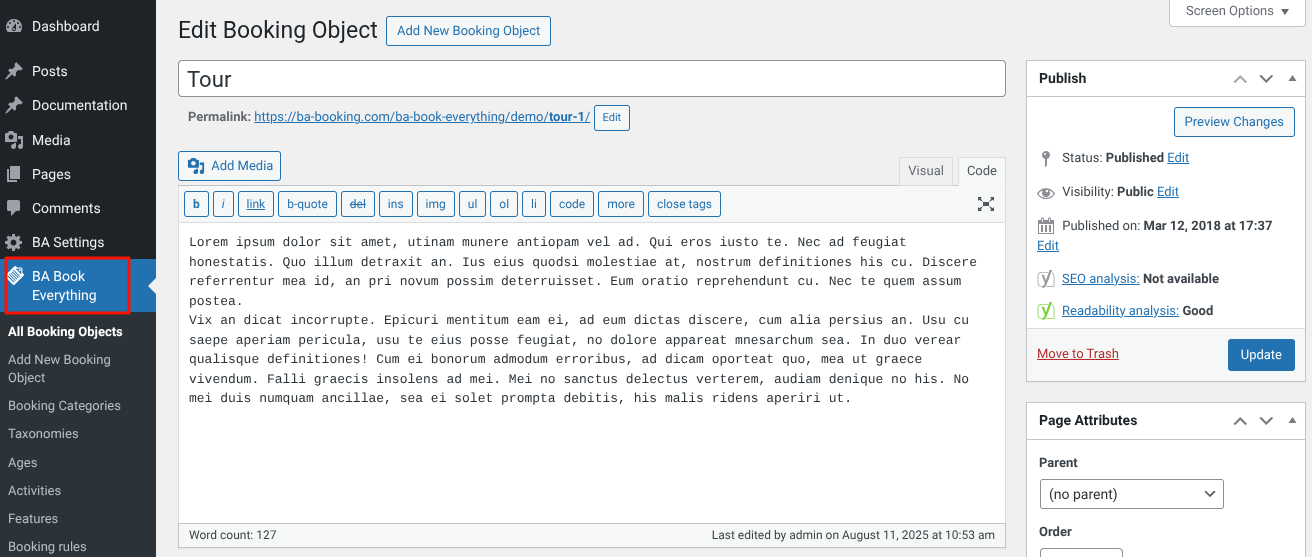
Editing posts is also possible on the My Account page for users with the Manager role
Basic settings (availability calendar)
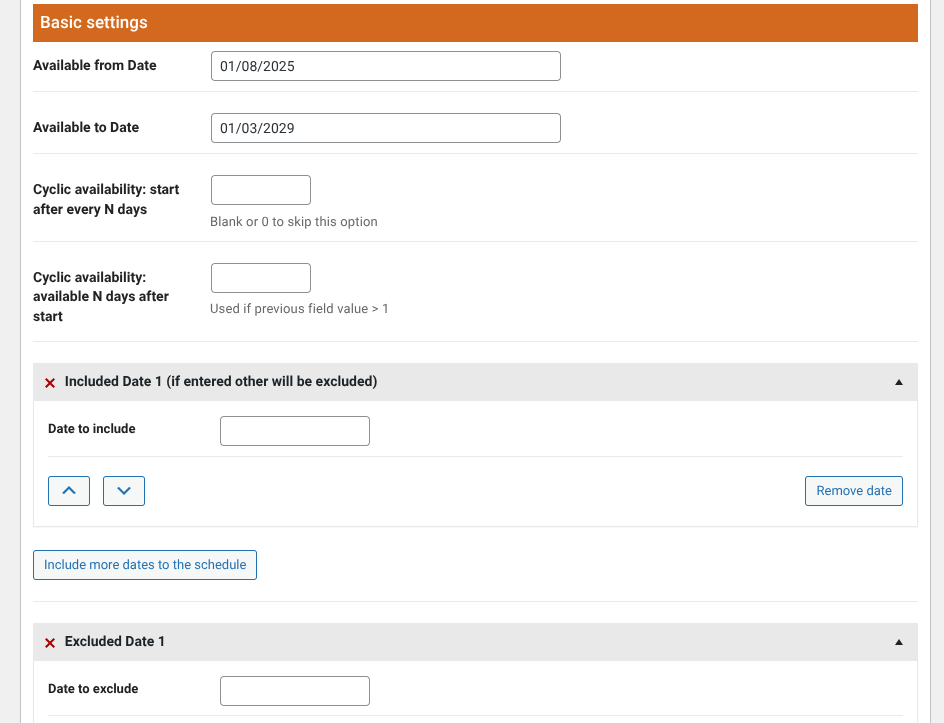
- Available from Date, Available to Date - defines the period of dates during which the property is available for booking
- Cyclic availability: start after every N days - useful for cruises and similar businesses, where your property is available for booking in N days from the previous available date (leave blank or 0 to skip this option)
- Cyclic availability: available N days after start – if previous field value > 1 the property will be available for booking next N days after new cycle started including day of the start (for cruises this value usually will be 1)
- Date to include – if dates are defined in this section, other dates will be excluded from availability calendar (not available) (optional)
- Date to exclude – excludes date from the availability calendar. You can specify any number of dates here (optional)
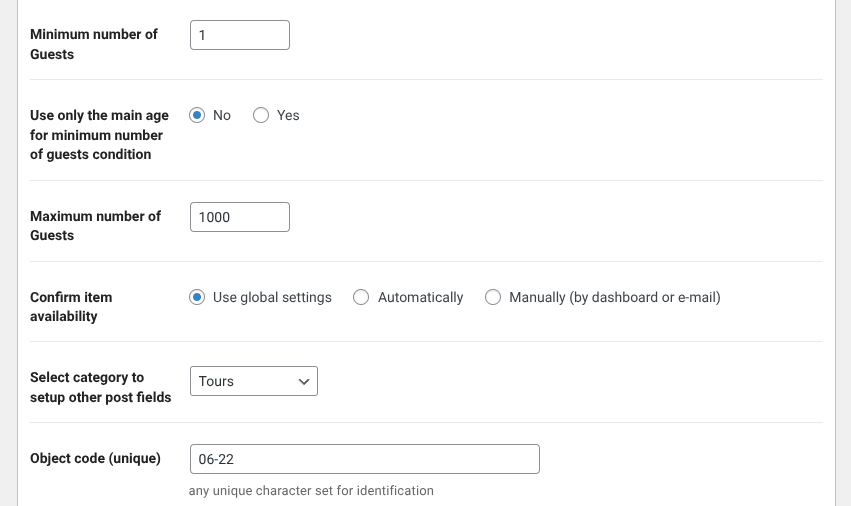
- Minimum number of Guests - the minimum number of guests that can be selected on the booking form
- Use only the main age for minimum number of guests condition - defines if the minimum number of guests condition only applies to the main age category in the drop-down list on the booking form
- Maximum number of Guests - the maximum number of guests
- Confirm item availability - sets the availability confirmation mode for this property:
- Use global settings - taken from the order settings
- Automatically
- Manually - by dashboard or e-mail
- Select category to setup other post fields - it defines booking rules and all options below
- Object code (unique) - any unique character set for identification
Category related settings
Depending on the booking category you select, the following settings will vary, as shown below in the examples for different categories
- Tour
- Apartment
- Yacht
- Car
- One time event
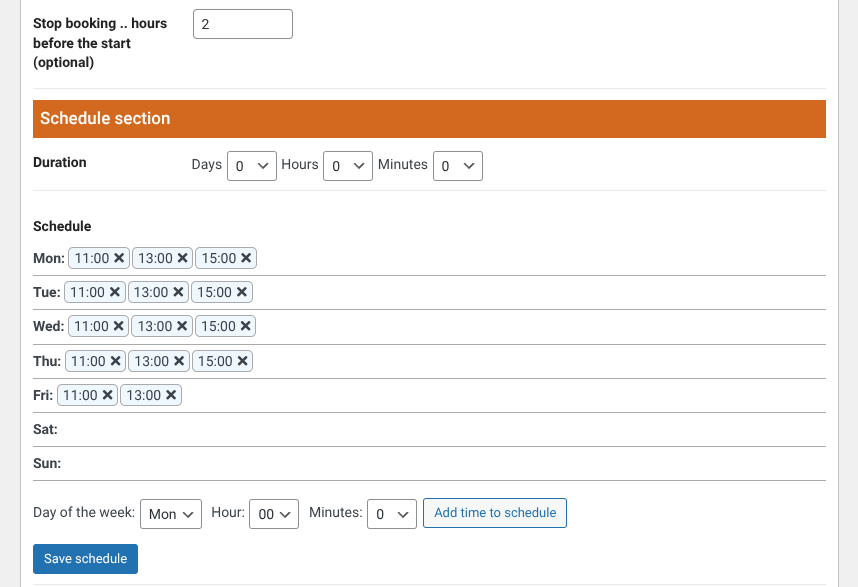
- Stop booking .. hours before the start (optional) - will override the same setting in the booking rule
- Schedule - enter the duration of your event here and add available booking times (tour sessions) for each day of the week
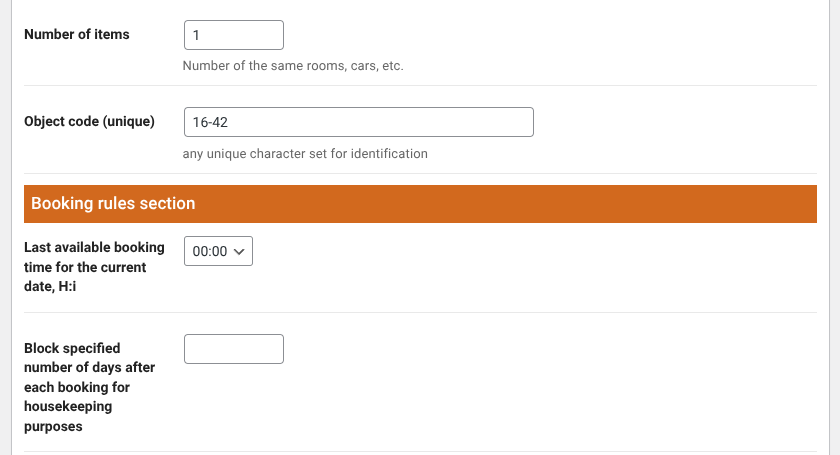
- Number of items - number of the same apartments to rent (must be defined, 1 by default). This option is available for "object" booking mode only
- Last available booking time for the current date, H:i - time when booking is no longer possible
- Block specified number of days after each booking for housekeeping purposes
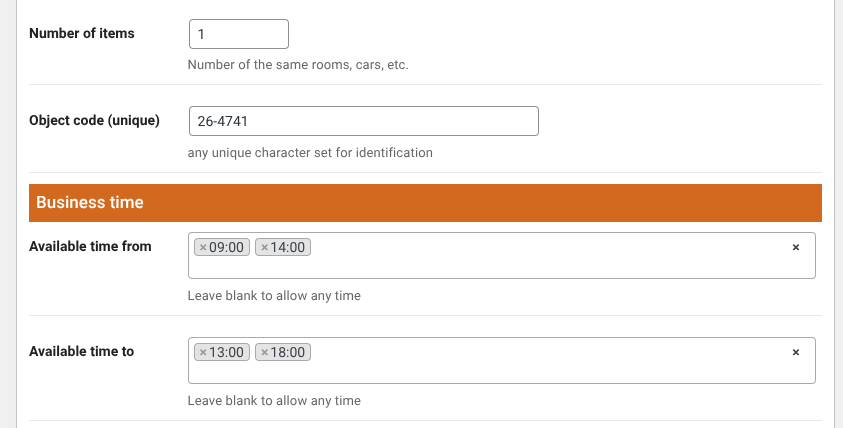
- Number of items - number of the same yacht to rent (must be defined, 1 by default). This option is available for "object" booking mode only
- Available time from, Available time to - define the time slots available for user selection (leave blank to make all time available)
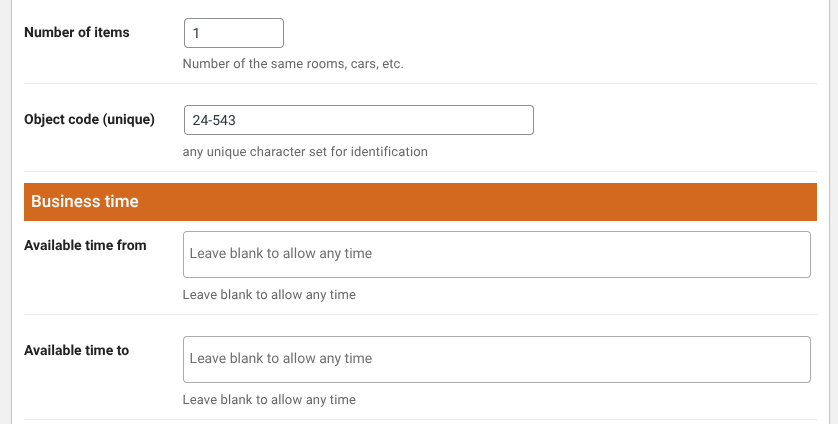
- Number of items - number of the same cars to rent (must be defined, 1 by default). This option is available for "object" booking mode only
- Available time from, Available time to - define the time slots available for user selection (leave blank to make all time available)

- Start time, End time - event start and end time
Prices section
The price section is described in the "Rates and Prices" doc.
Address section
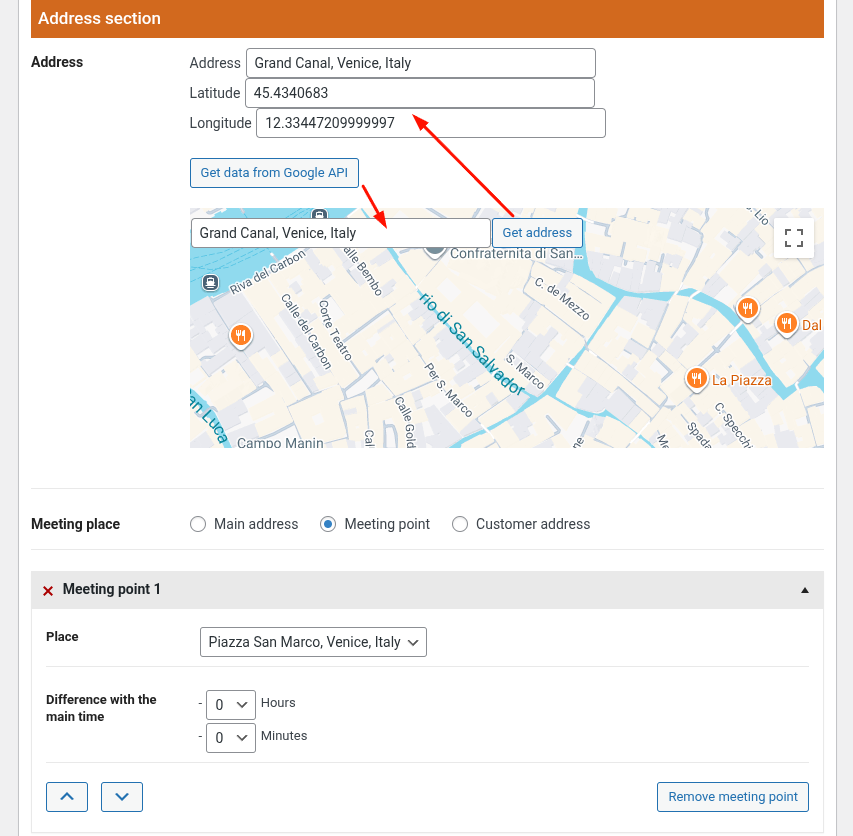
If "Google map" is enabled in the BA Settings → Google map admin menu, and "Add address field?" option is selected in the current booking category, the address section will appear. Also, if "Add meeting points functionality?" is enabled in the BA Settings → Booking object admin menu, the places will be able to specified as meeting points for tour booking categories
Step-by-step description section
If "Add step by step description?" option is selected in the current booking category, the appropriate section will appear by the specified title
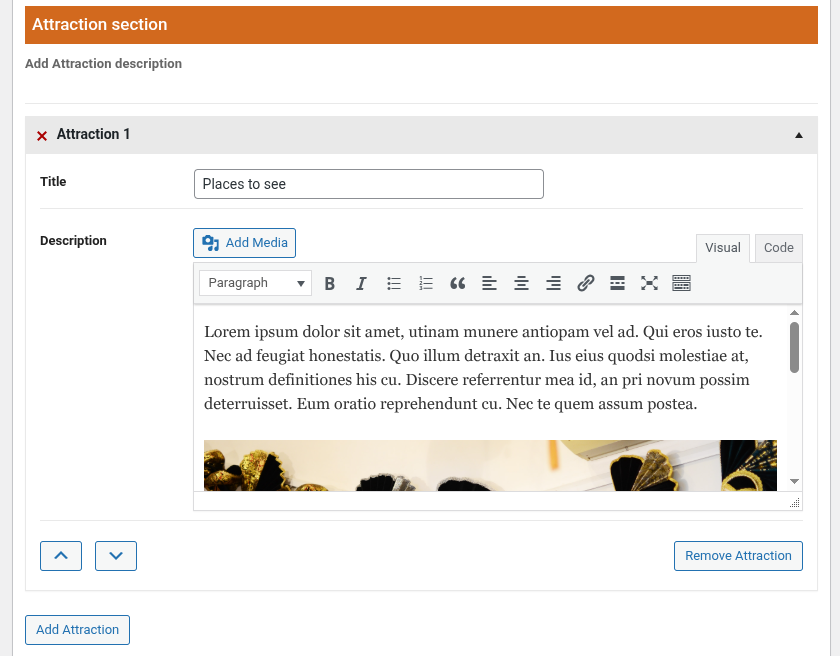
Adding taxonomies, services, FAQ
In the following sections you can add taxonomies, services and FAQ created on previous steps.
Available taxonomies are specified in the "Include taxonomies" option of the current booking category
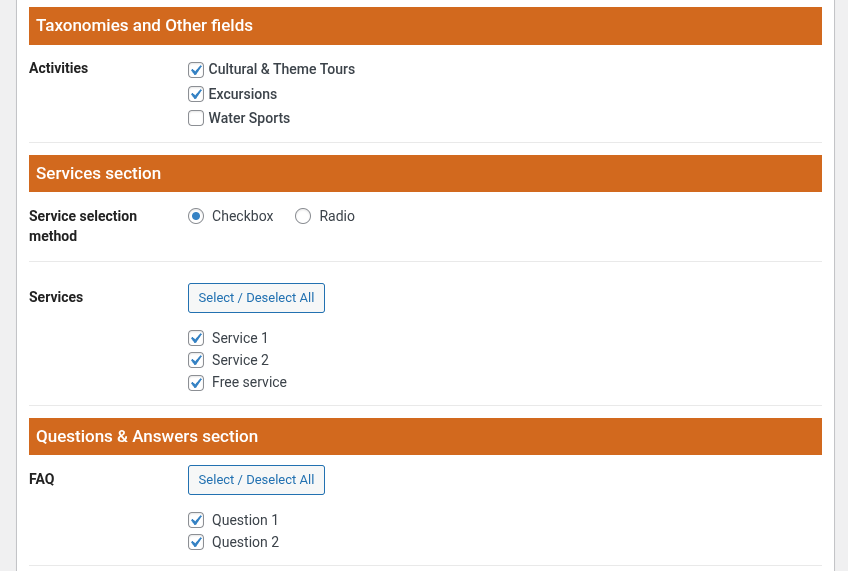
- Service selection method - determines how services will be selected in the booking form: any number of services (checkbox), or just one service from the list (radio)
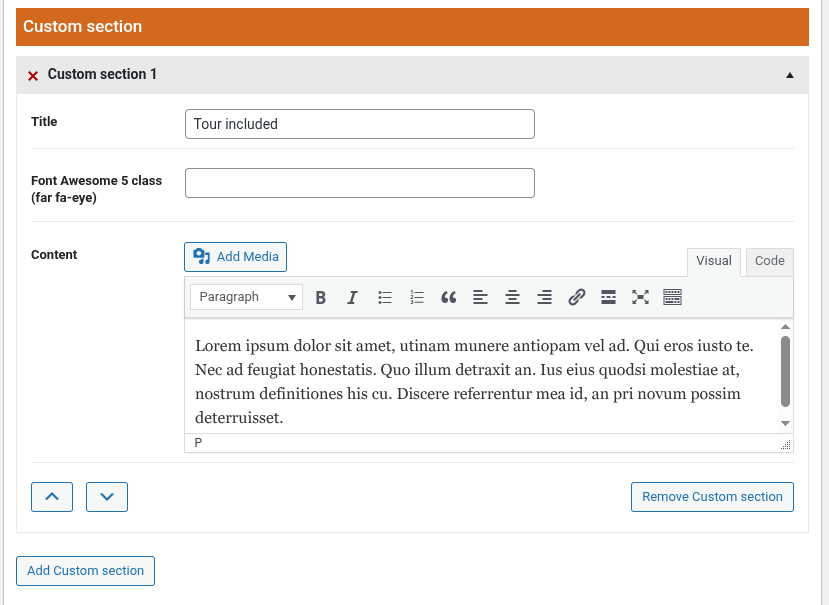
Additional description blocks
It is also possible to add any number of additional description blocks to the property
Related items
Include other booking objects here to increase cross-selling

Rating
Button "Recalculate Rating" allows you to recalculate the rating of the booking object based on all existing reviews

Front-end Availability Calendar
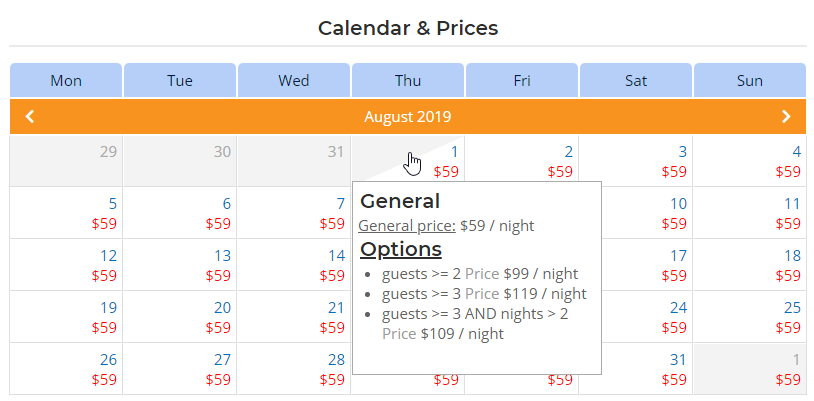
- By default the Availability Calendar is shown on the booking object page on site front-end (you can change it on the plugin setting page). It contains prices for each available date (they are displayed when you hover over a cell) and is synchronized with the booking form widget.
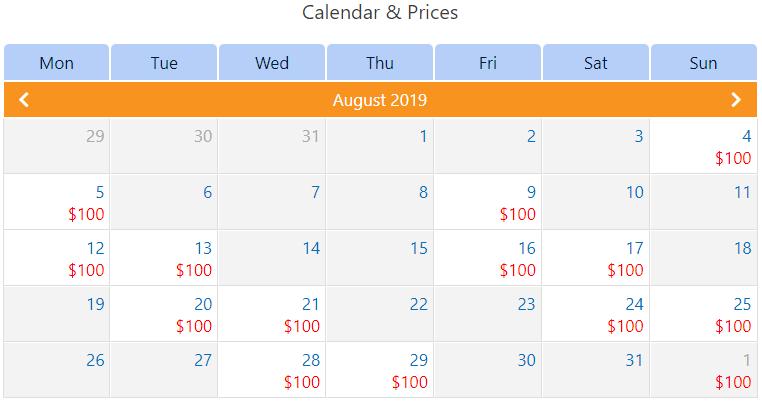
- calendar with cyclic availability