Payments
The BA Book Everything plugin provides one default payment option "Pay later", which means that payment for the booking will be made offline.
Online payment processing is implemented using additional plugins that integrate popular payment gateways with BA Book Everything plugin. You can find available payment plugins in our store.
After activating the payment add-on activate a purchased license key and add your payment account settings in the BA Settings → Payments admin menu.
As an example, with "BABE Payment pack" add-on you can extend BA Book Everything plugin to accept PayPal payments and credit card payments on your site with PayPal and Stripe payment gateways.
Any payment service is provided by the payment provider company, not by payment plugins.
Therefore, you need first to select payment provider from all those available in your region, contact them to define if they suit your business and you can create a business payment account in the needed payment system. After this you can check if the appropriate payment gateway add-on is present in our store.
For example, PayPal may not work in your region or may not allow you to create a business account. In this case, you will not be able to use this payment plugin.
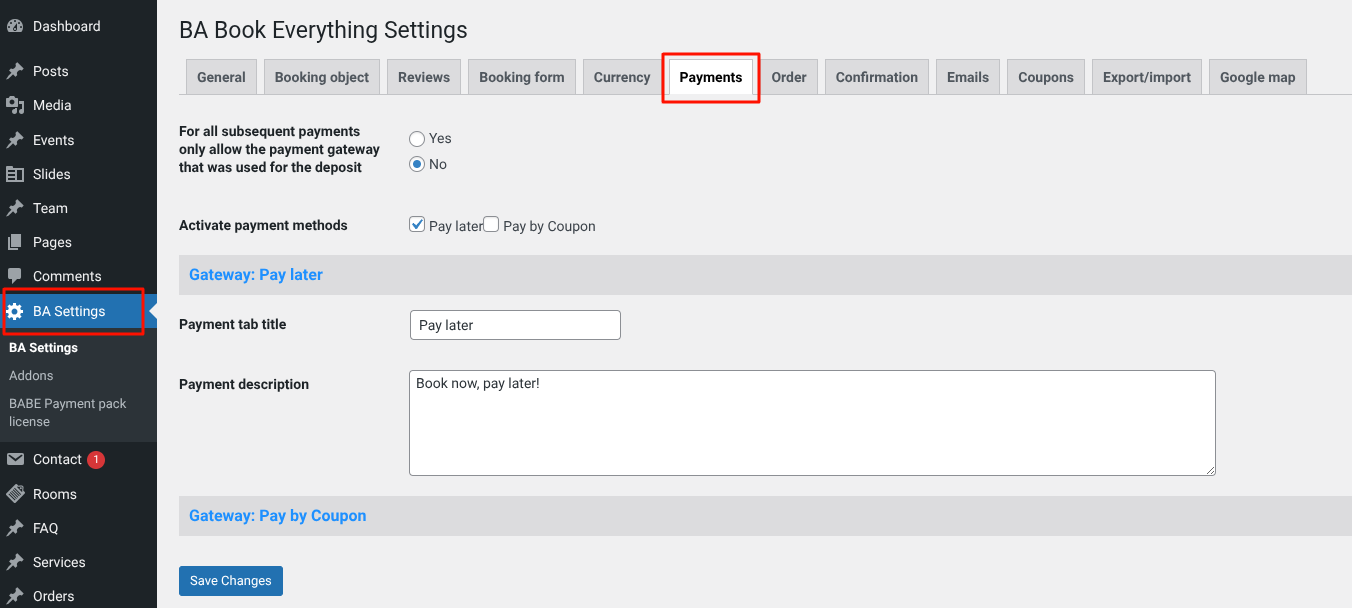

- For all subsequent payments only allow the payment gateway that was used for the deposit
- if YES → If a client makes a deposit using a specific method (e.g., PayPal), then all subsequent payments will be made using the same method
- Activate payment methods - Enable or disable payment gateways
A payment method must be activated here for it to appear in the list of payment options on the checkout. Below is an example of the PayPal payment gateway settings, which are provided by the "BABE Payment pack" plugin.
PayPal ("BABE Payment pack" plugin)
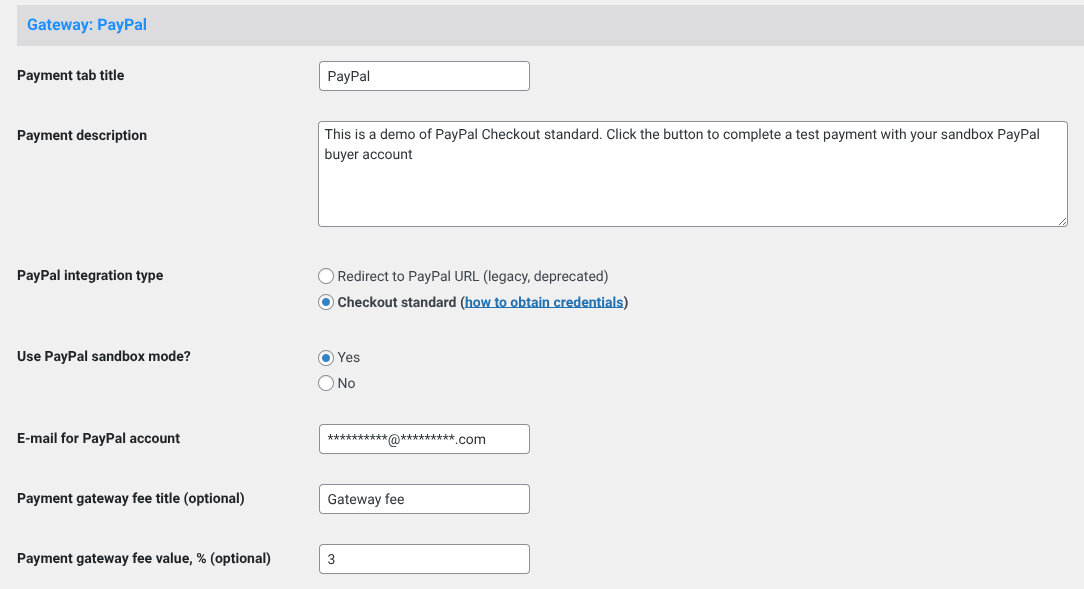
- Payment tab title - Title of the payment tab. Shown when selecting the payment method on the checkout
- Payment description - Description text explaining the payment process to display on the checkout
- Type of PayPal integration
Redirect to PayPal URL(deprecated) – redirect to PayPal website for payment- Checkout standard – standard method, requires API credentials. To obtain credentials, follow the link
- Use PayPal sandbox mode? - Enable PayPal sandbox mode for test payments (no real transactions)
- E-mail for PayPal account - Email address linked to your PayPal account. Used to receive payments with deprecated redirect integration
- Payment gateway fee title (optional) - Title for the payment gateway fee, if applied (e.g., "PayPal Fee")
- Payment gateway fee value, % (optional) - Percentage fee added to the order when using PayPal on checkout, if applied
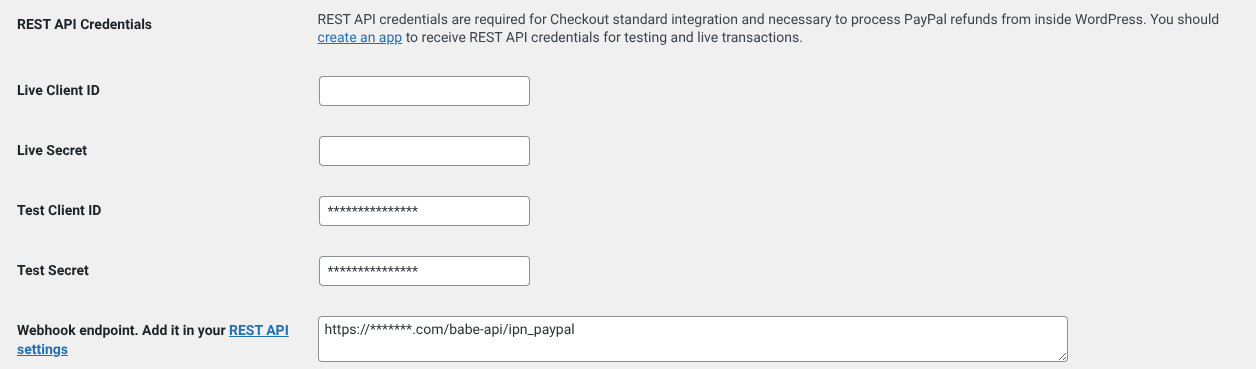
REST API credentials are required for PayPal Checkout Standard integration and to process PayPal refunds directly from WordPress. You must create an app in PayPal to get REST API credentials for both testing and live transactions.
- Live Client ID / Live Secret - These credentials (Client ID and Secret) are generated in PayPal when you create an app in Live mode. They are required to process real transactions on your site.
- Test Client ID / Test Secret - These credentials are provided by PayPal when creating an app in Sandbox mode. They are used for testing payments without real transactions. Useful for debugging and integration checks
- Webhook endpoint - This URL is used to receive an IPN/Webhook notifications about payment statuses form PayPal servers. It is required to add it into your PayPal account REST API settings