Rates and Prices

Rates and prices system is easy to use and incredibly flexible in adjusting any price variations based on seasons (dates), week days (weekend rates, etc.), number of the guests or/and number of the days/nights.

Starting from BA Book Everything version 1.3 a new flexible rate system has been introduced.

On your booking object editing page, the new rates and prices section will look like on the screenshot below
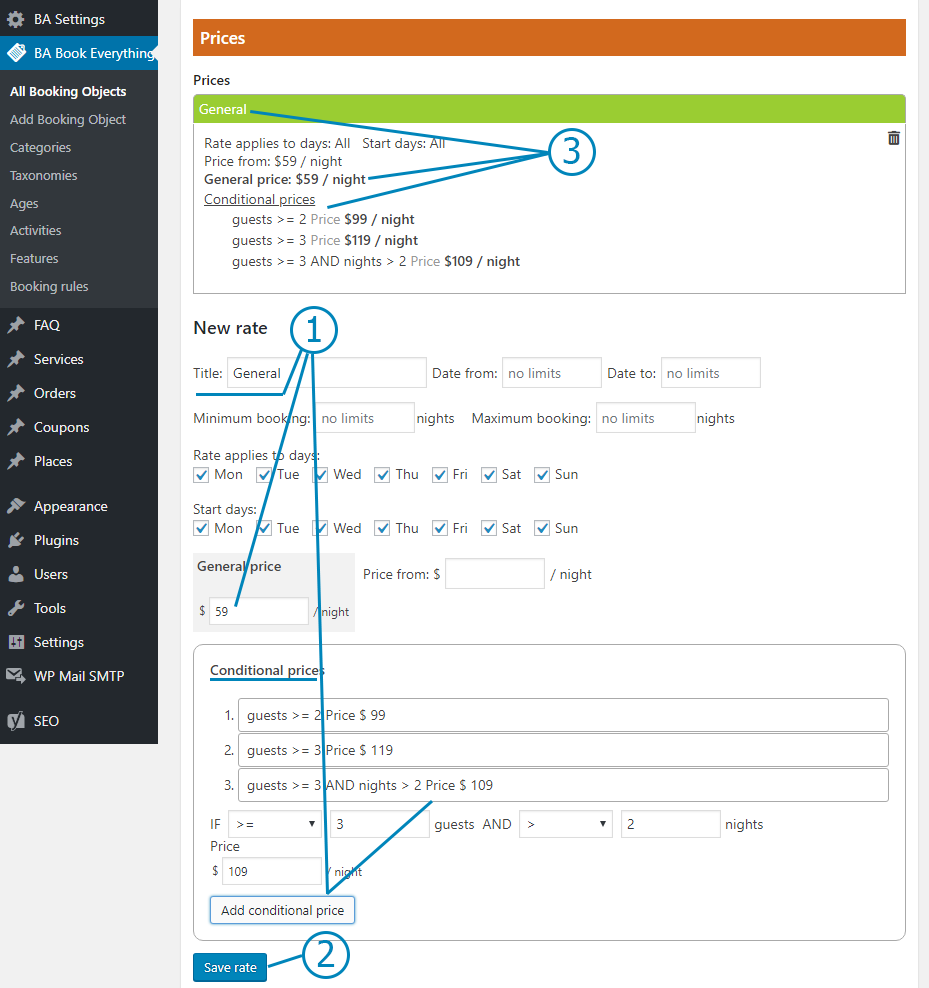
Inside each rate you should specify:

  • Title – will identify rate at the backend and show in the availability calendar (required).
  • Date from, Date to – period when the rate is activated. You can setup both, or just one of them or leave all empty (to use the rate constantly).
  • Minimum booking, Maximum booking – limits available number of days/nights for single reservation (optional). If you use the “recurrent custom” booking period in your booking rules, this options will specify minimum/maximum number of guests per reservation.
  • Rate applies to days – limits week days on which the rate should be used. For example, select only Fri and Sat for “weekend nights” rate.
  • Start days – days of the week in which the reservation can be started. It can be useful for days or nights reservations (apartments, cars, etc.). If you use the “recurrent custom” booking period, you should setup available times for each needed week day in the Schedule section of the page.
  • General price – the price used in the calculation if conditional prices are not applied (required).
  • Price from – will used to show in booking object description on front end on the search result page, in “all-items” shortcode output, and in the booking object single post. If left empty, the value from general price field will be used.
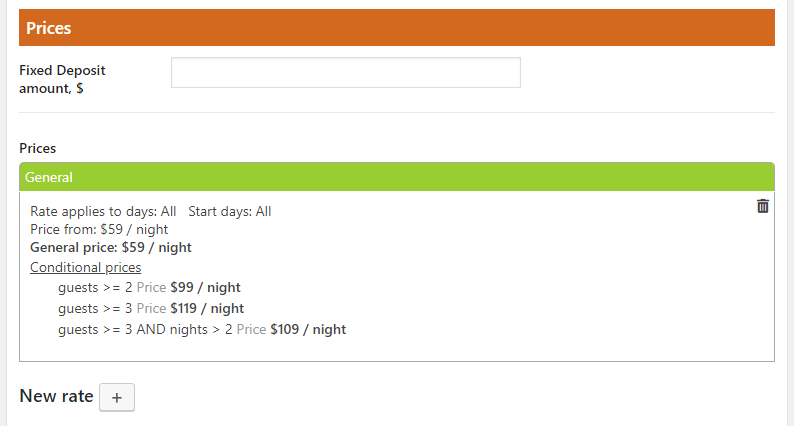
  • Conditional prices – variable prices depending on number of the guests or/and number of the days/nights (optional).

On each price calculation request, all conditions will be checked from top to bottom of the rule list, and price will be calculated for each true condition. The last calculated price will be used.

For example, if you want to set one price for reservation with duration >= 2 nights and another price for duration >= 4 nights, the “4 nights” rule should be at the bottom of rule list. Otherwise, for “4 nights” reservation the calculated price will be from “duration >= 2 nights” rule as it’s also true and is last calculated.

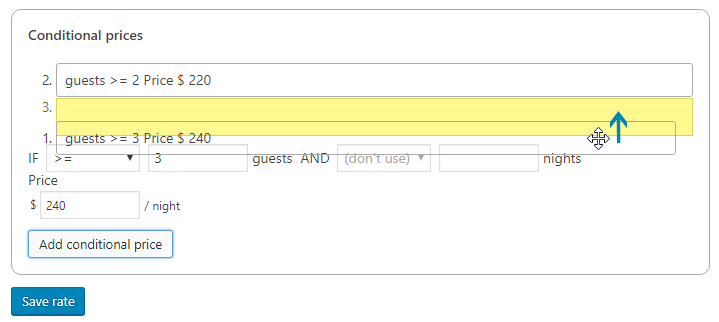
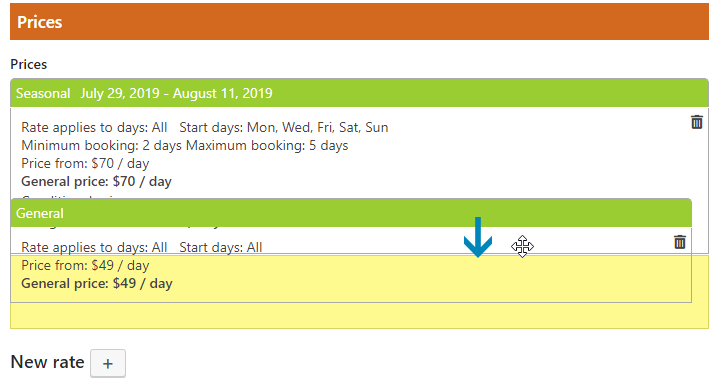
Before save the rate you can sort created prices in the “Conditional prices” section just by dragging and dropping them with mouse.
You can create any number of rates according to your rental business model.

Each request for price calculation will use the first rate, which can be applied to the selected dates.
For example, if you have weekend rate and general “all days” rate, the weekend rate should be placed at the top of the rate list. You can sort created rates at any time just by dragging and dropping them with mouse.
Examples by rental types

Fixed deposit amount

Since BA Book Everything 1.3.6 you can set fixed deposit amount for each booking object on booking object editing page.
Setup environment

The BA Book Everything plugin requires at least one configured booking rule for its work. Therefore the plugin is bundled with startup rules, which you could use for easily start.

General Settings

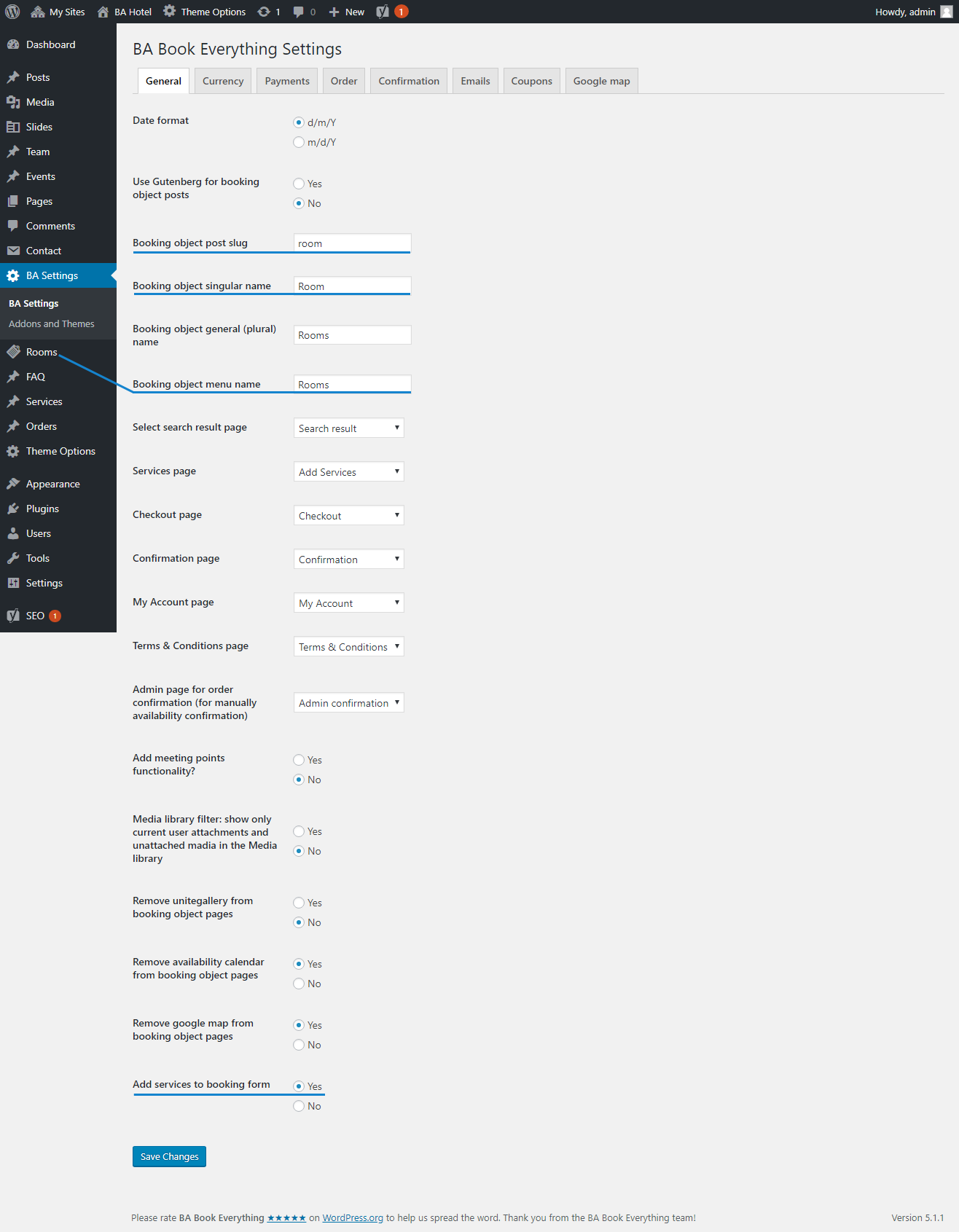
At the beginning you have to configure booking engine from BA Settings menu. Most of the settings can be used with their default values. But some of them you may want to change.

  1. Date format – d/m/Y or m/d/Y.
  2. Booking object post slug – set the word from your business, like apartment, tour, etc.
  3. Booking object singular name, general (plural) name and menu name – to customize the page titles on the dashboard.
  4. Service pages – you could select own pages instead of those installed by the plugin.
  5. Add meeting points functionality – this could be useful for services such as tours or events.
  6. Confirm item availability – the general confirmation mode could be set to Automatically (by default) or Manually (confirm every order from dashboard or e-mail).
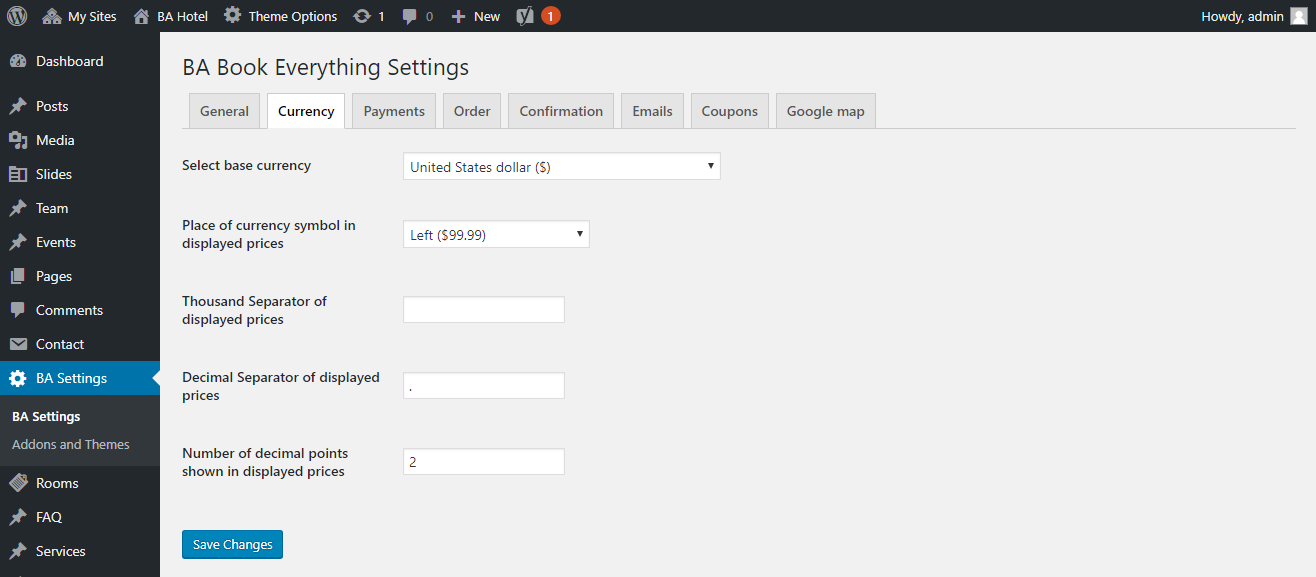
  7. Currency settings – select from presets and customize.
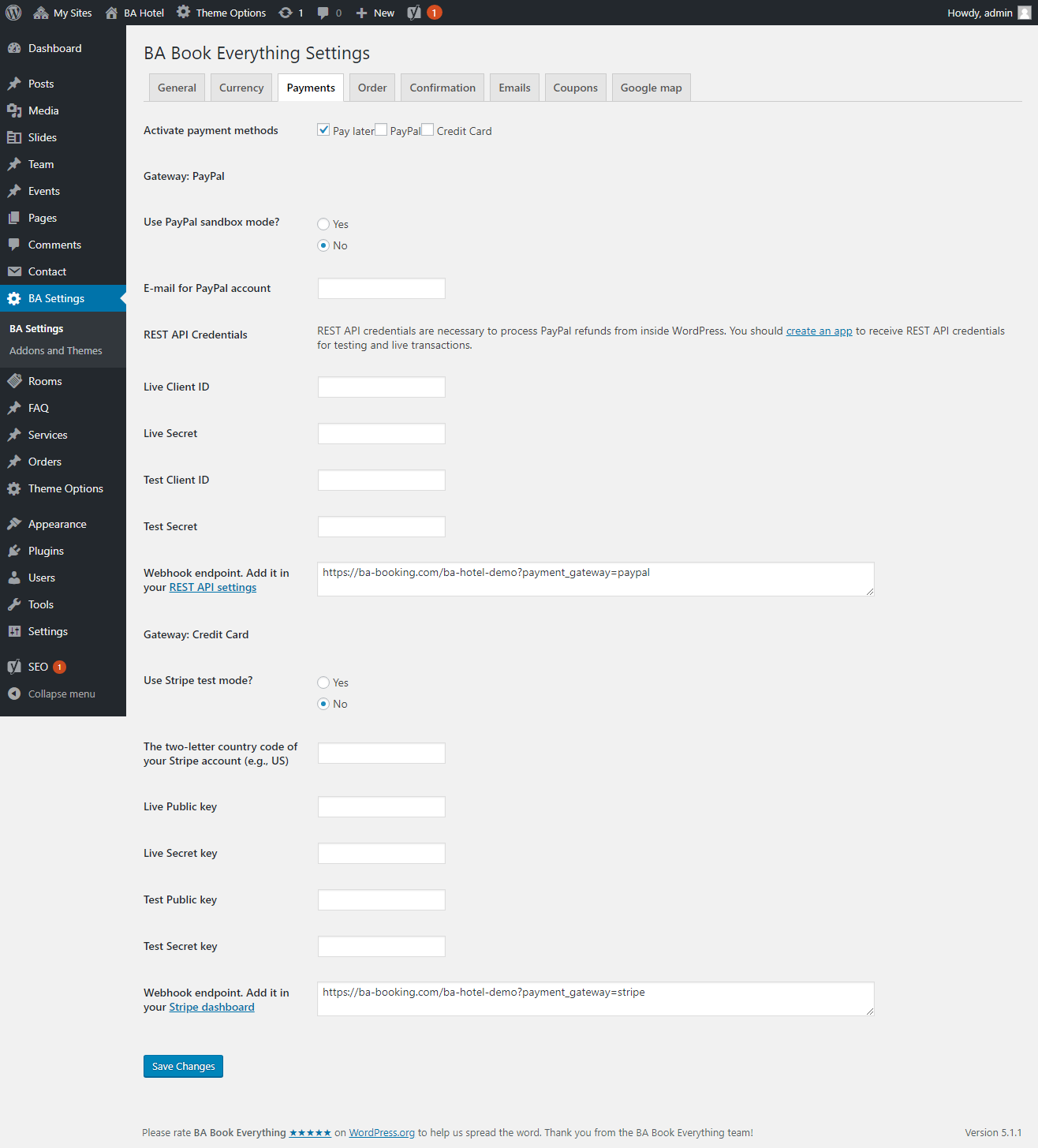
  8. Payments – if you activated BABE Payment pack add-on you should activate needed payment methods and add your PayPal/Stripe data on Payment tab
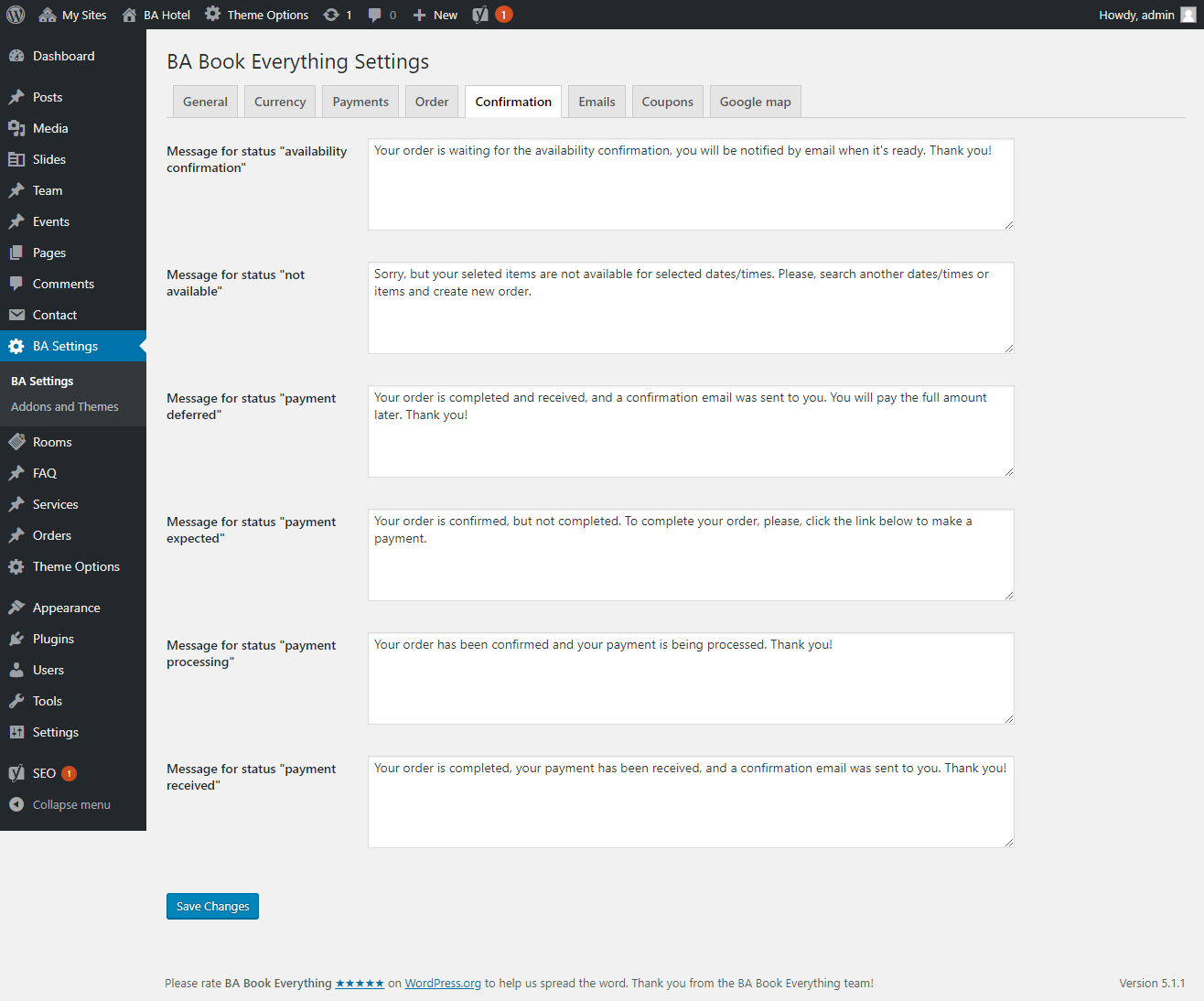
  9. Confirmation front-end messages – edit default confirmation messages on Confirmation tab
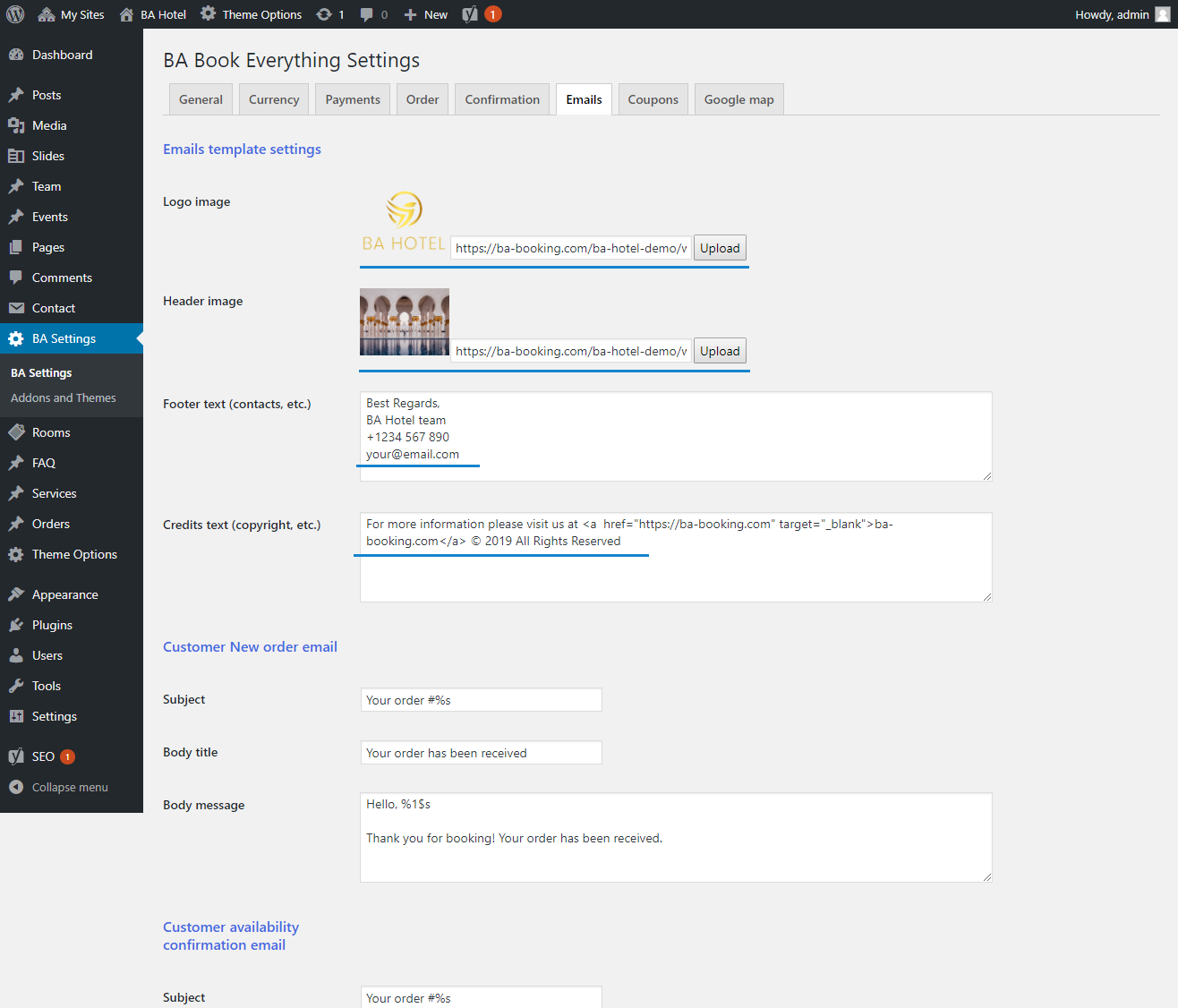
  10. Emails – BA Book Everything plugin creates nice html notification emails. Add your company logo image, header image, footer and credits text on Emails tab
  11. Google map API setting – to set up your personal API key, map zoom and marker.


Booking rules

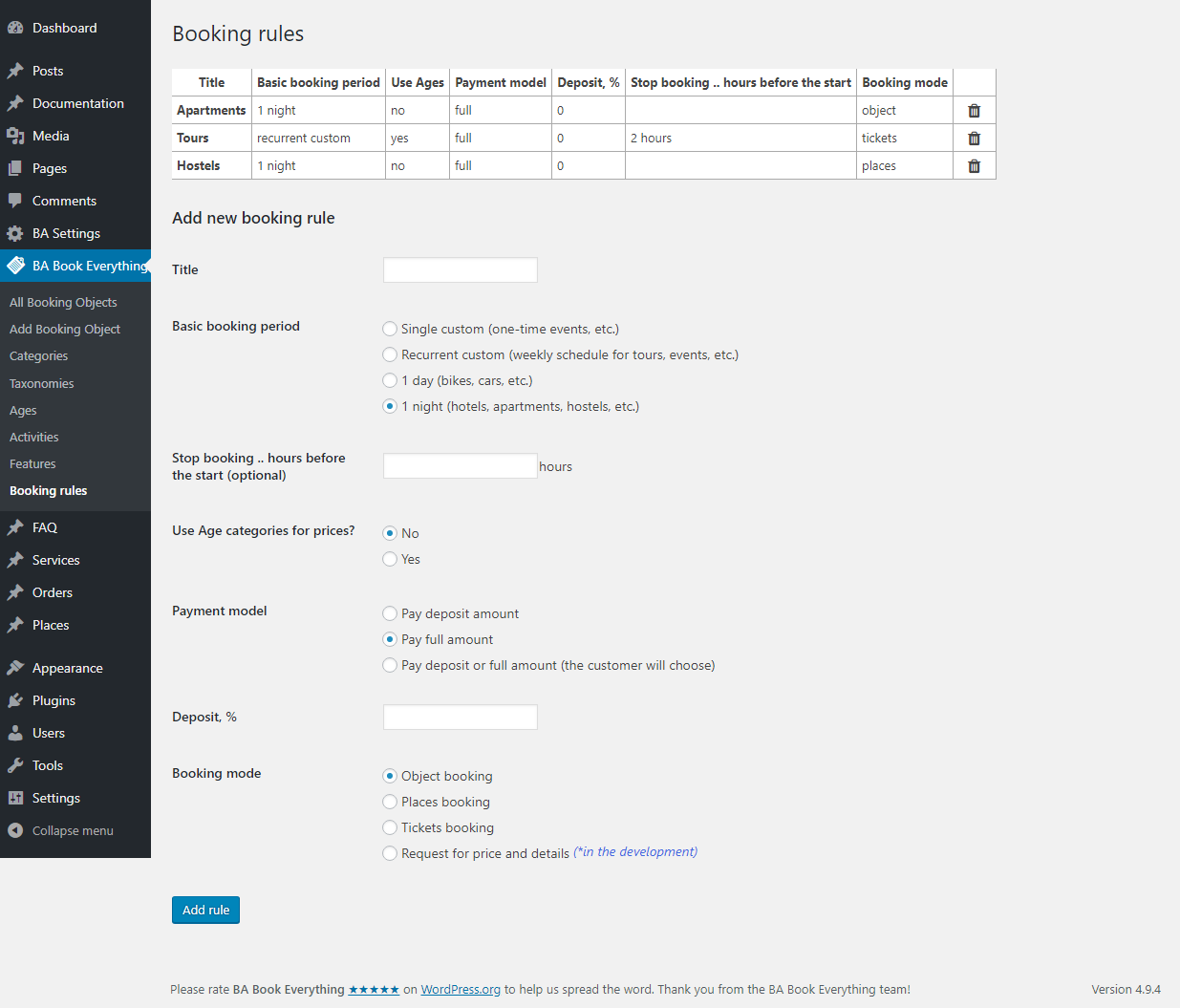
The booking rules differ depending on the business. For example, you have to set basic booking period on “1 day” for car rental, “1 night” for apartments, or “recurrent custom” for tours.

Use booking mode option to define what you rent: whole “object” like rooms, apartments or cars, “places” in hostel or “tickets” for tours. Note, that age categories for prices will not used with “object” booking mode.

Payment model option allows you to select from “Pay deposit amount”, “Pay full amount” or “Pay deposit or full amount (the customer will choose)”. Deposit, % option will applied for all reservations if “Pay deposit amount” or “Pay deposit or full amount (the customer will choose)” is selected. Since BA Book Everything 1.3.6 you can set fixed deposit amount for each booking object on booking object editing page.
The plugin requires at least one configured booking rule to be used in the categories in the following steps.

You can create several booking rules with different Payment models if you want to get, for example, full payment for some rooms/properties and allow deposit payment for others.

Ages

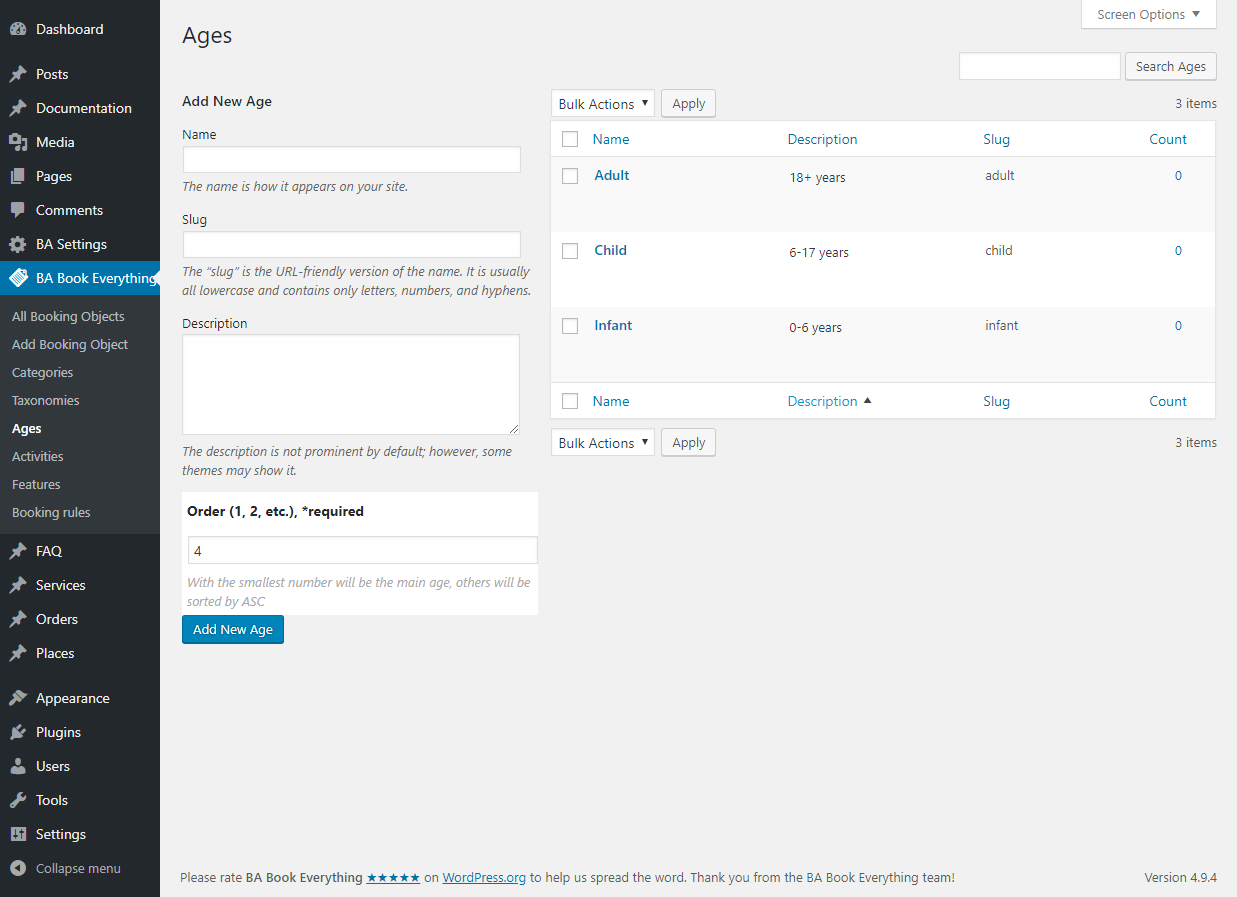
If you want to set prices based on the age of the customers, you have to add all ages as terms in the Ages taxonomy. Note, that “order” meta field is required. It defines the main age for basic price calculation. With the smallest number will be the main age (usually – adult), others will be sorted by ASC.

Taxonomies

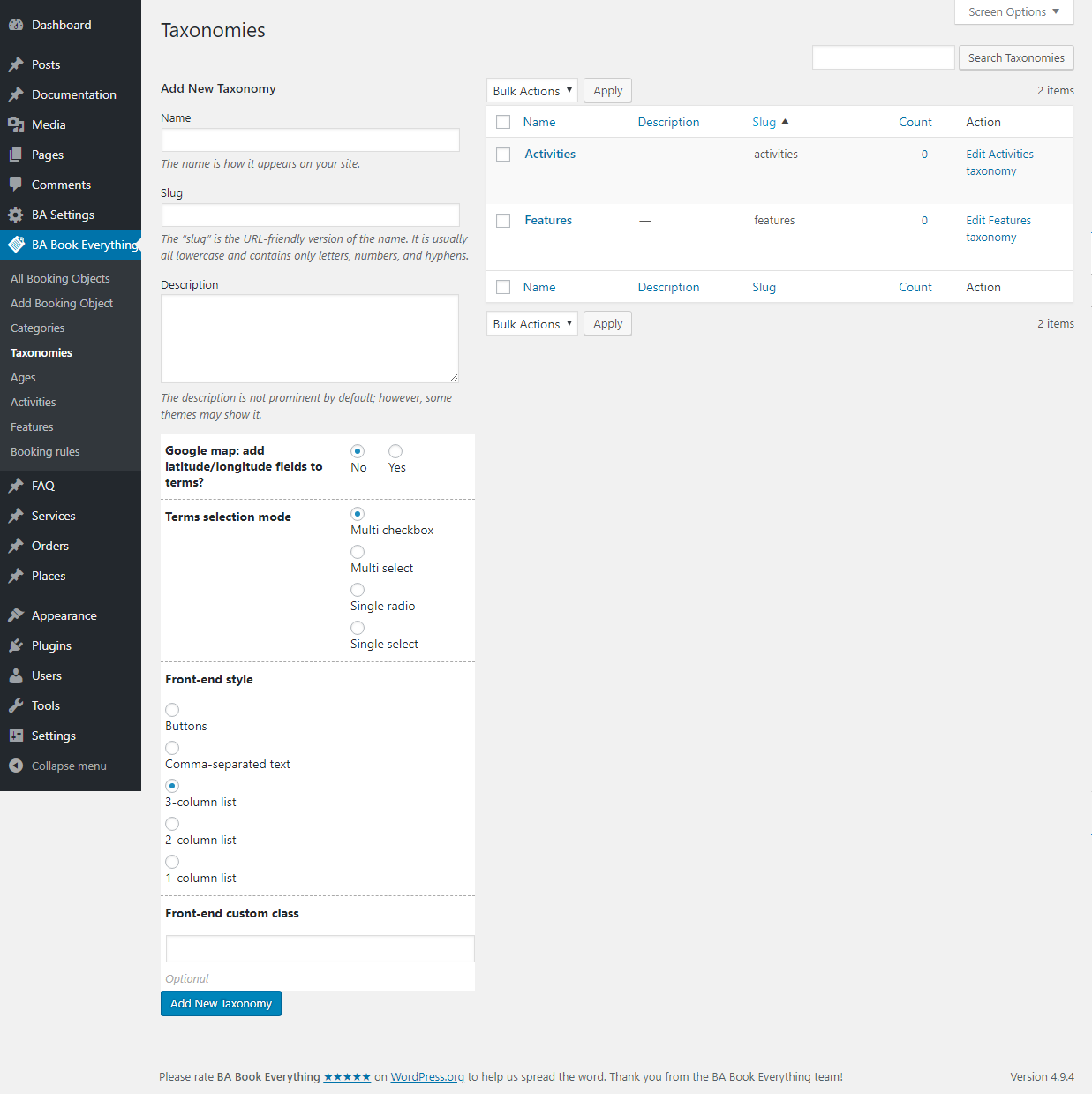
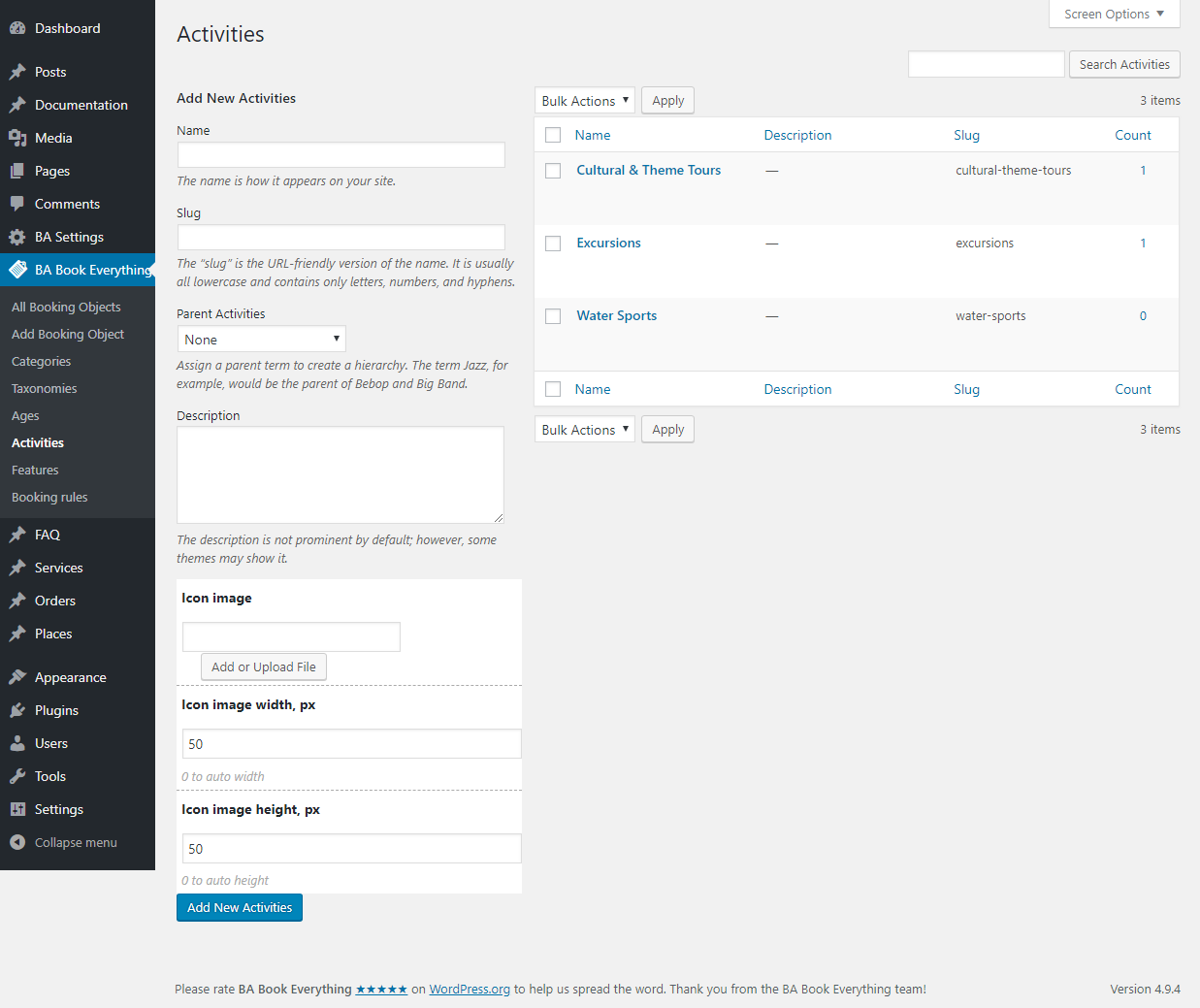
You could create different custom taxonomies (Features, Amenities, Activities, Destinations, etc.) from “Taxonomies” menu to use with the Categories on the next step. Each taxonomy is created first as a term. Then, after updating the web page, the taxonomy appears in the main menu of the plugin with its name.

Categories

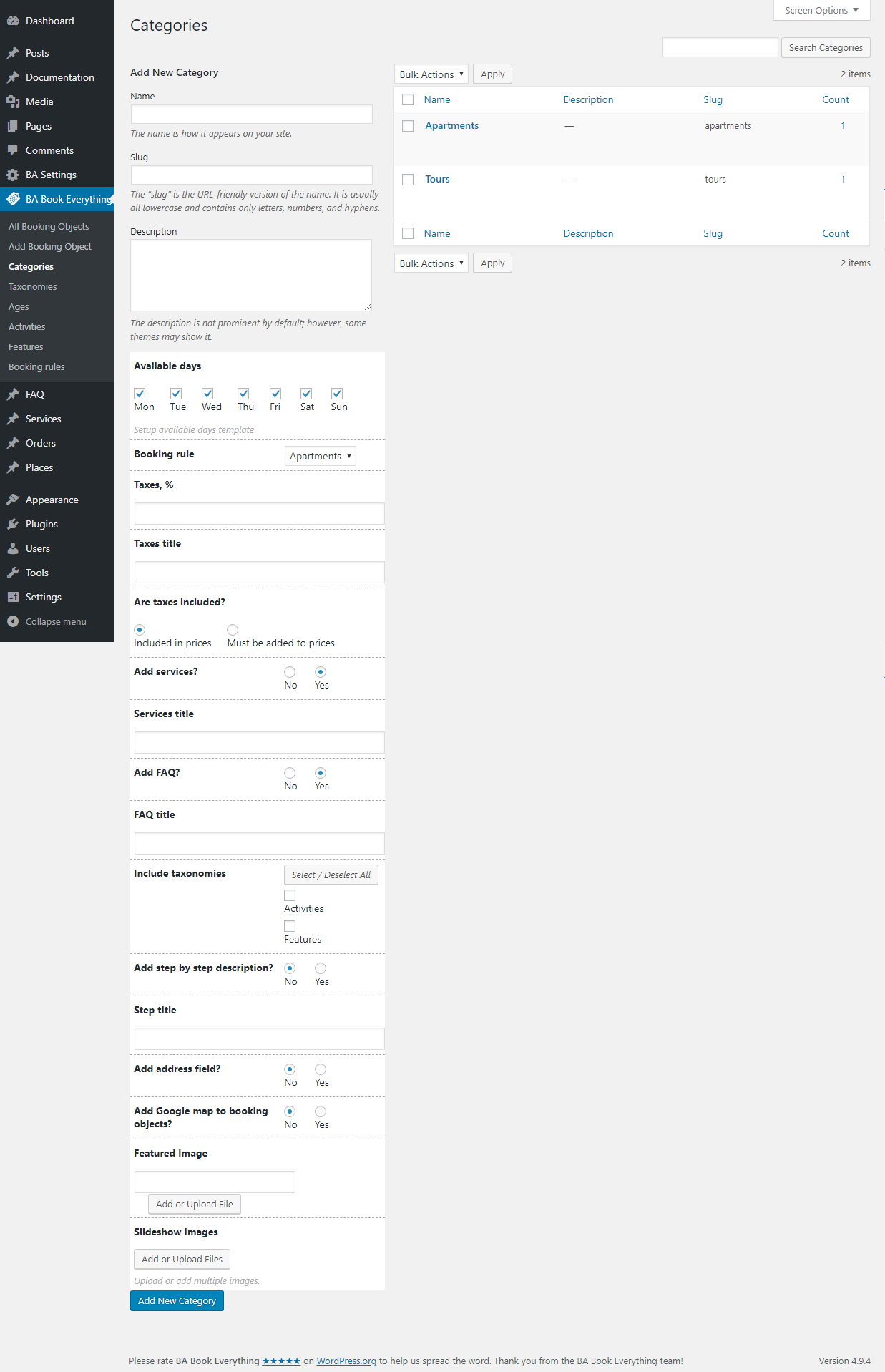
The basic post configurations are created as terms in “Categories” taxonomy for use as templates in our booking objects. You should define here booking rule, taxes, additional services, questions & answers, other taxonomies, step by step description and Google map integration. You could create as many categories as you need.

In order to add meeting place functionality to booking objects you need to activate “Add address field?” option.

The plugin requires at least one configured category to be used in the booking object post creation.

FAQ

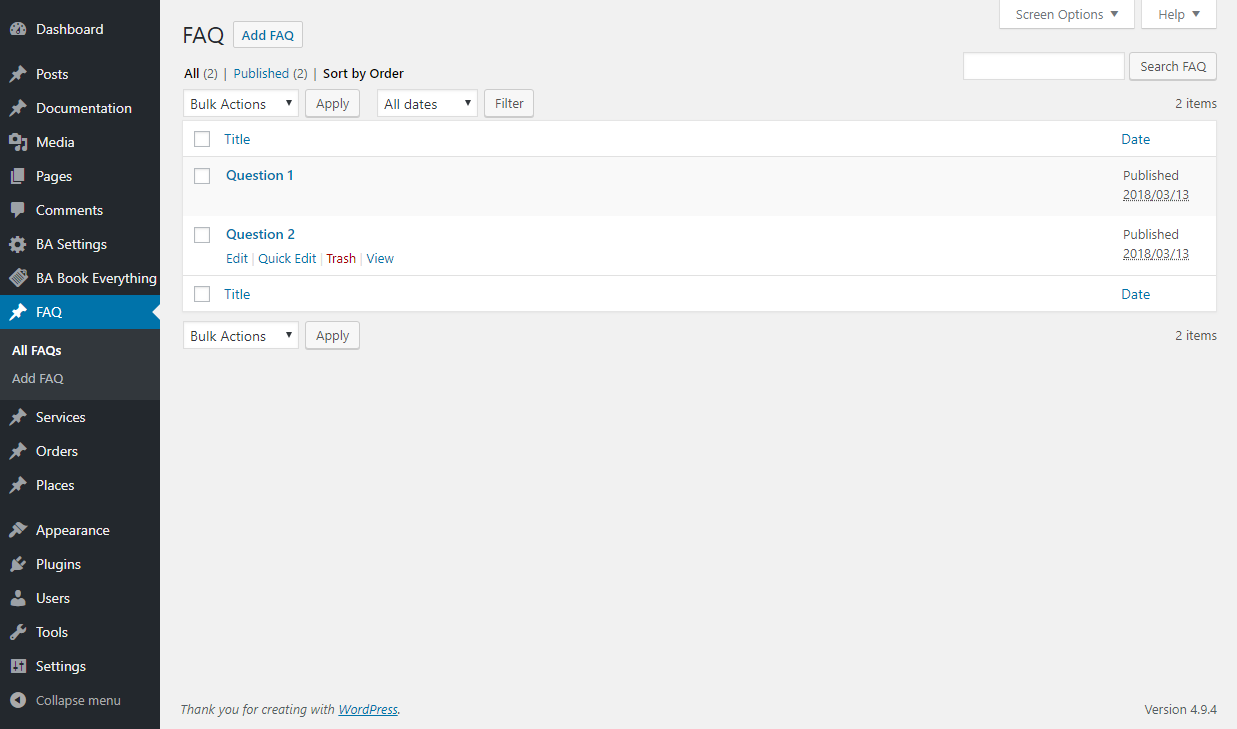
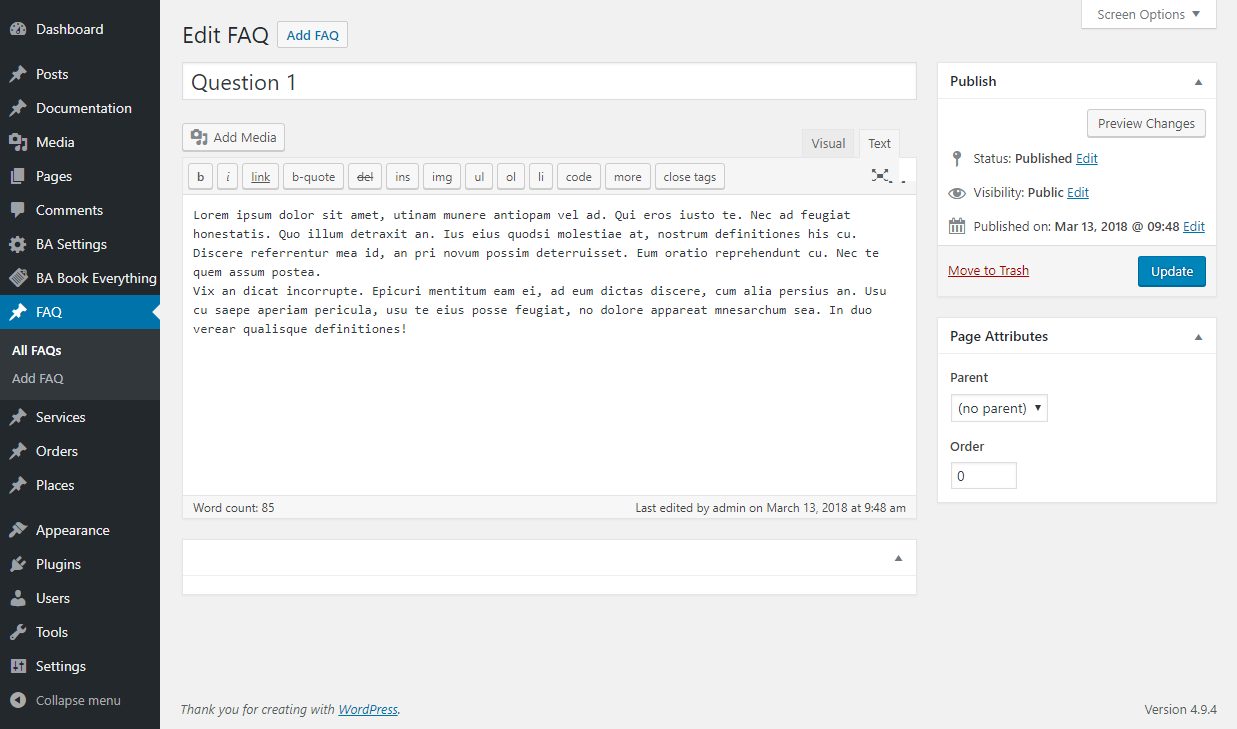
The plugin allows you to add Questions & Answers to your booking object page in a simple way, by creating FAQ posts and selecting them when editing a booking object post.

Additional Services

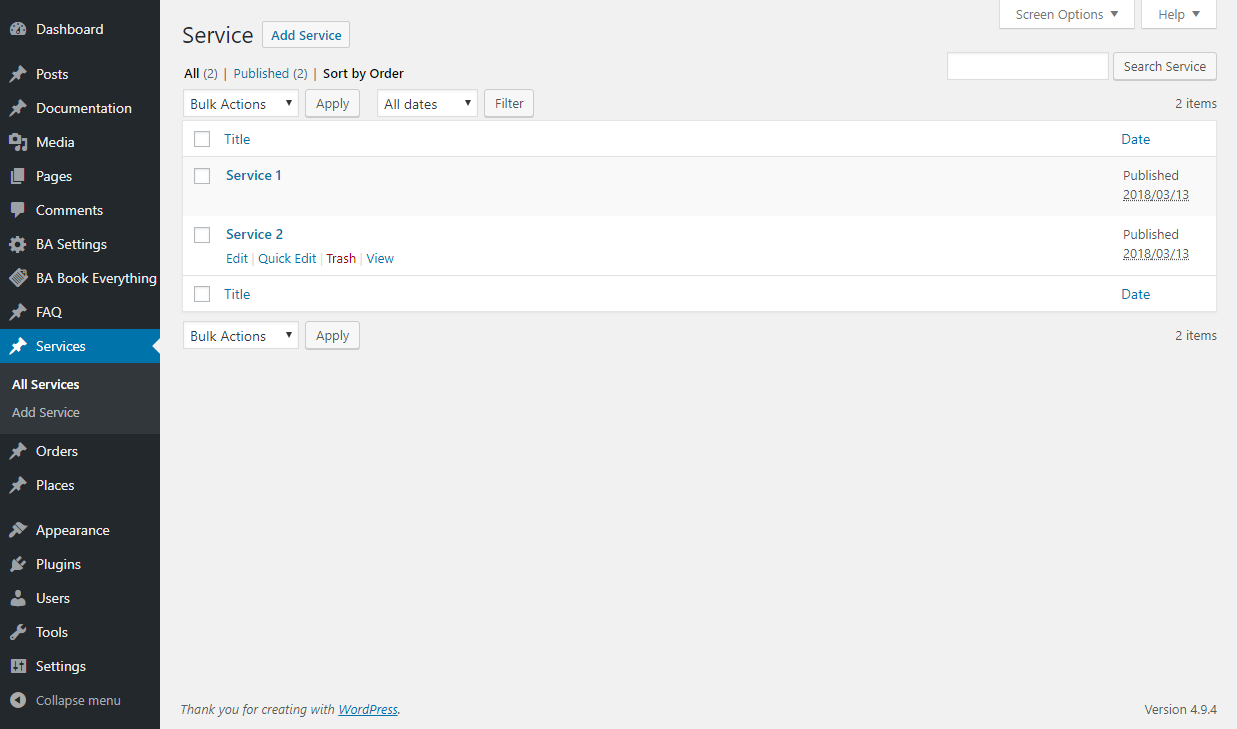
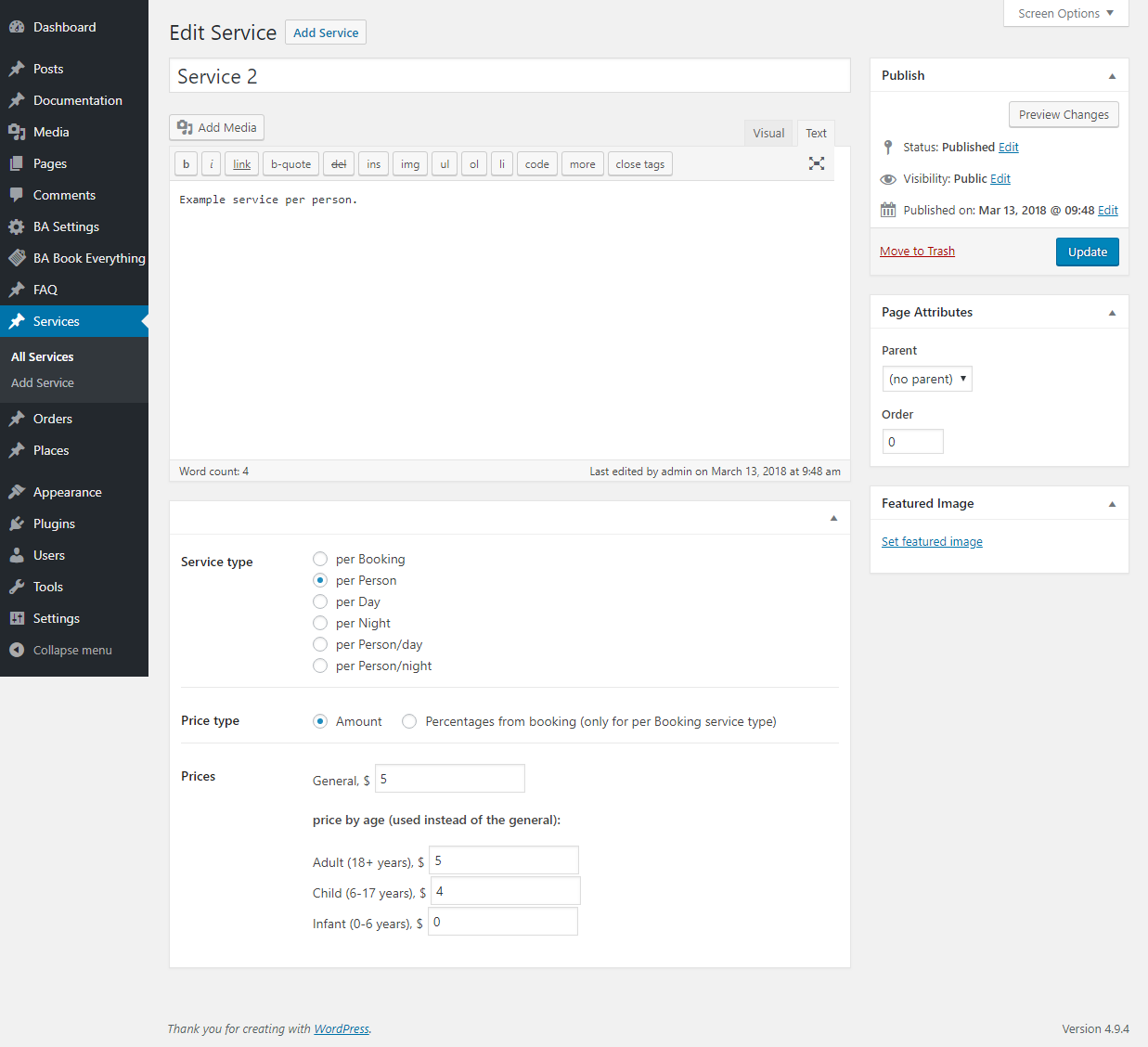
In a similar manner you could create additional services to sell them with bookings. Service price could be calculated per Booking, per Person, per Day, per Night, per Person/day or per Person/night. This can be one common price for all ages or a different price by age.

Places

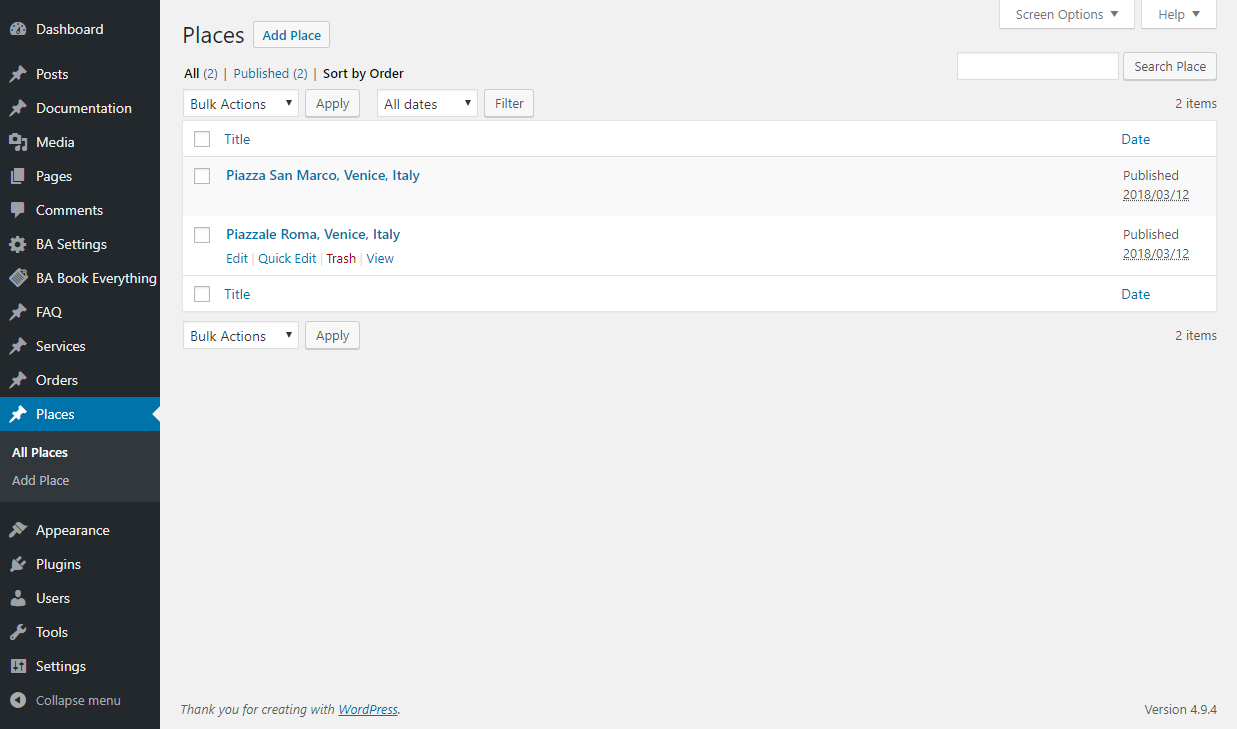
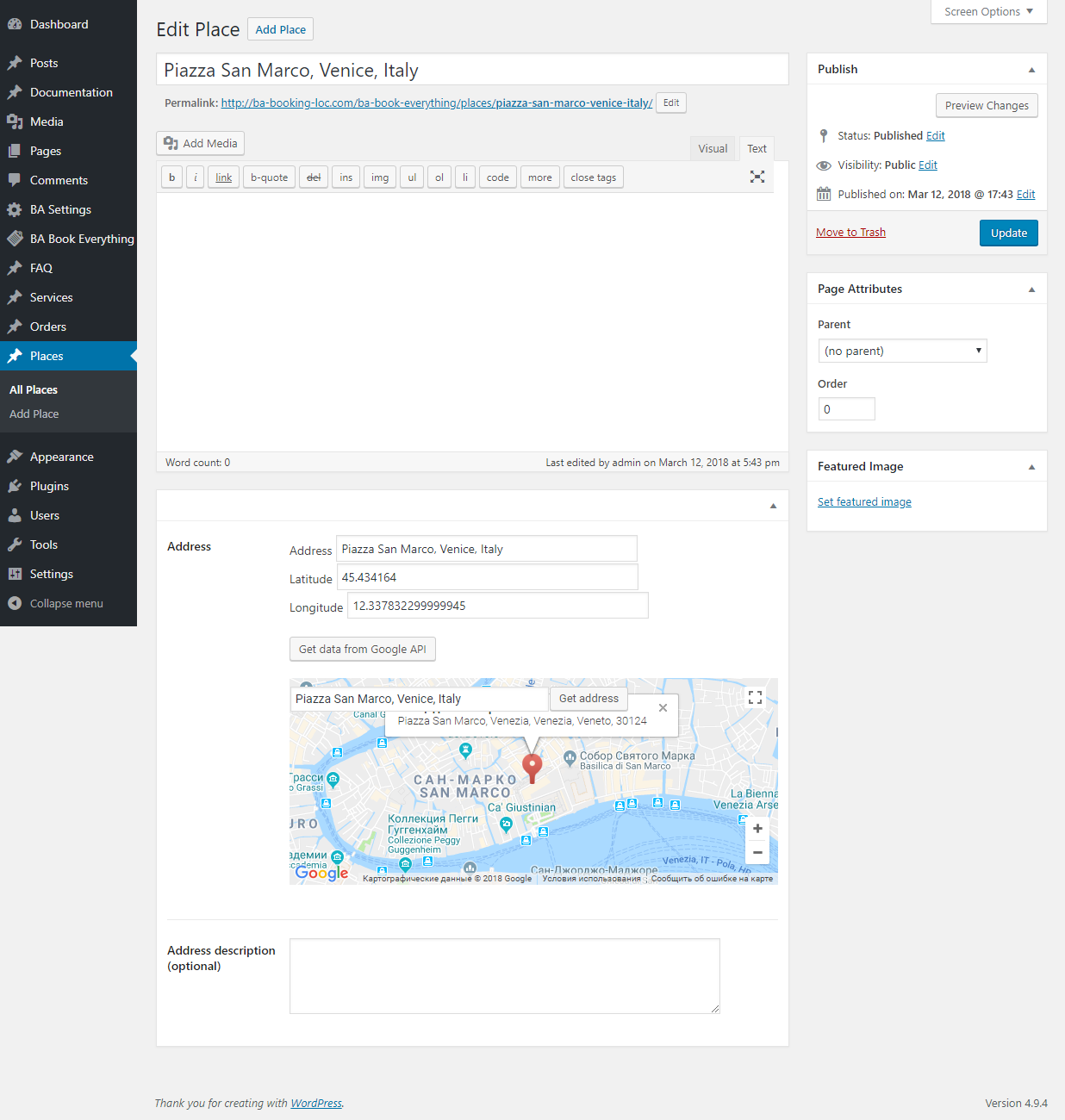
If you activated “Add meeting points functionality” on the BA Settings page, the Places menu is appeared on the dashboard. This post type is used to store addresses, coordinates and names of the meeting points for use when editing a booking object post.

Installation

Minimum Requirements

  • PHP version 7.4 or greater
  • MySQL 5.7 / MariaDB 10 or greater
  • WordPress 6+

Automatic Installation

To do an automatic install of BA Book Everything, log in to your WordPress dashboard, navigate to the Plugins menu and click Add New. In the search field type “BA Book Everything” and click Search Plugins. Once you’ve found our Booking plugin you can install it by simply clicking “Install Now”.

Manual Installation

The manual installation method involves downloading our Booking plugin and uploading it to your webserver via your favourite FTP application. The WordPress codex contains instructions on how to do this here.

Updating

Automatic updates should work like a charm; as always though, ensure you backup your site just in case.

Cookies

This site uses cookies to enhance your user experience and analyse traffic to improve this website. By clicking any link on this page you are giving your consent for us to set cookies. Please, see our Privacy Policy for additional information.
Scroll to top