Checkout flow
Booking begins with filling out all the data in the booking form widget. After this, the customer comes on the checkout page to enter personal data and complete the order.
Checkout page
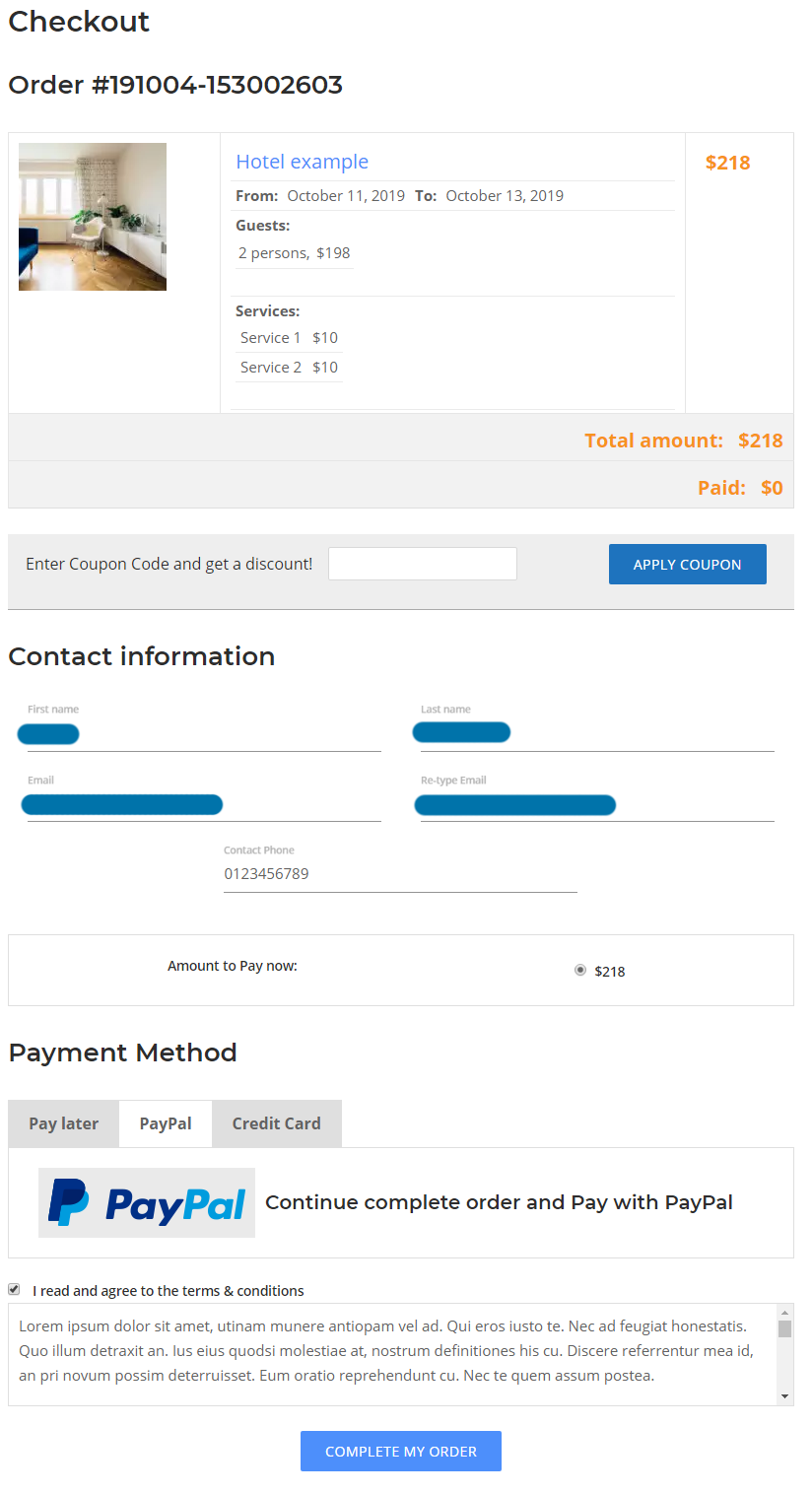
Customers review their order details, provide contact information, and choose a payment method.
Order Summary
Displays all essential booking details:
- Selected item (e.g., hotel, tour, apartment)
- Booking dates (From / To)
- Number of guests
- Extra services
- Total amount and prepaid amount (if applicable)
This section allows users to verify the order before completing the reservation.
Сoupon Code
Users can enter a coupon code to apply a discount.
Coupons must be enabled and configured in the plugin settings.
Contact Information
The user fills in their personal information:
- First name
- Last name
- Email and re-type email
- Contact phone
These details are included in the order and used for email notifications.
Payment Method
Users can select one of the available payment options: (all methods must be enabled and configured in the plugin settings)
Terms & Conditions
A checkbox that requires the user to agree to the site's terms and conditions.
This step is mandatory for completing the order.
Completing the Order
The Complete My Order button finalizes the booking:
- For online payments: the user is redirected to the selected payment provider site.
- For "Pay later": the order is created immediately, and a confirmation email is sent to the customer.
When checkout begins, the new order locks the item's calendar dates for approximately 15 minutes to allow the customer to complete the booking. If the checkout is not completed, the order remains in draft status and will be deleted by the cron job after 15 minutes. In this case, the calendar dates will get back to the available status.
After completing the checkout the order confirmation will email to administrator and customer, and customer will be redirected to Confirmation page.
Confirmation Page
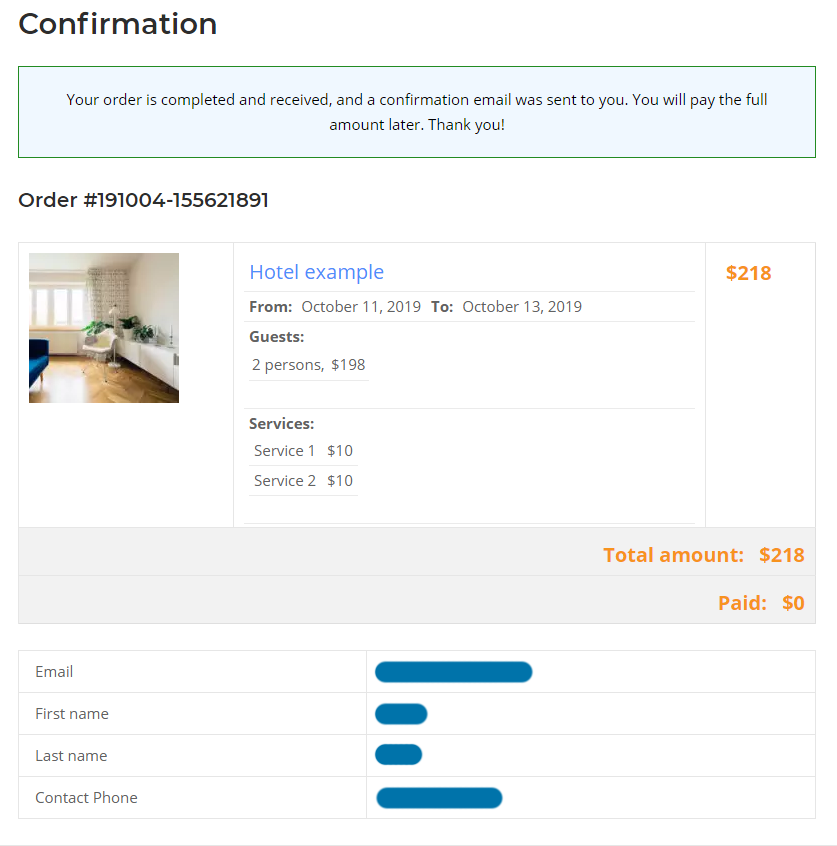
The Confirmation page is displayed after the customer successfully completes the checkout process.
It confirms that the order has been created and that a notification email has been sent to the customer.
Confirmation Message
A success message appears at the top of the page, informing the customer that:
- the order has been received,
- the confirmation email has been sent,
- the payment is processing, received or will be completed later
This reassures the customer that the booking was successfully processed.
Order Details
The page includes a full summary of the created order:
- Order number
- Booked item (e.g., apartment, tour, event)
- Booking dates (From / To)
- Number of guests
- Selected services
- Total amount and prepaid amount
This section allows the customer to review all booking information saved in the system.
Customer Information
The customer’s contact details are also shown:
- First name
- Last name
- Contact phone
These details match the information entered during checkout.
The Confirmation page provides a final overview of the booking, ensuring the customer has:
- a clear record of the order,
- a confirmation email for their inbox,
- and all essential details in one place
All types of statuses and how they change can be found on the Order management page
Email Template: Order Received
- Customer email
- Admin email
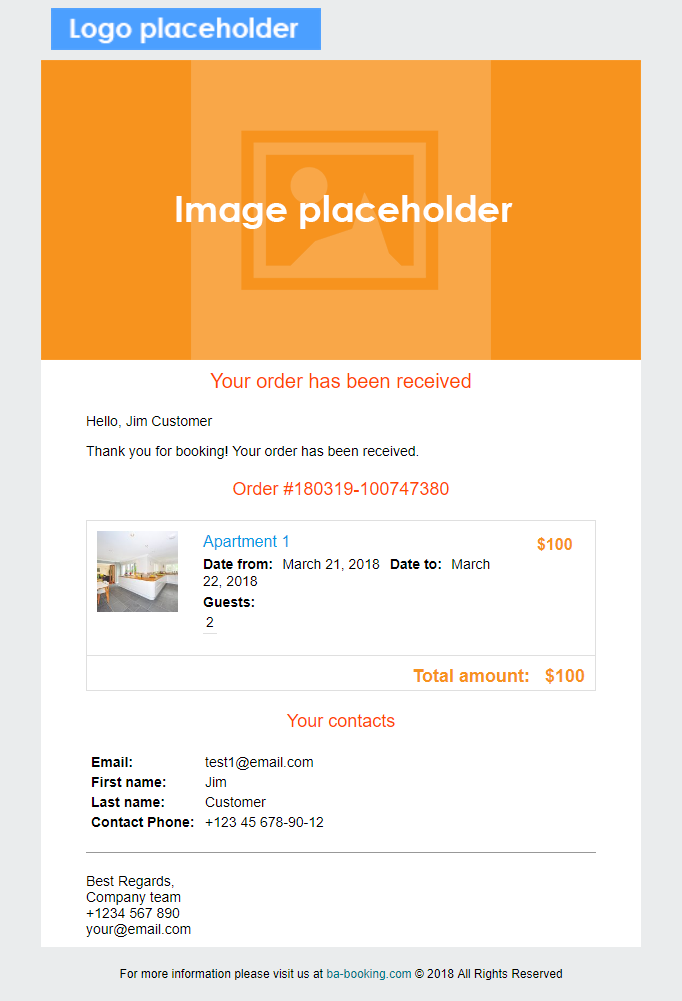
The Order Received email is automatically sent to the customer after a new booking has been successfully created.
This notification confirms that the order was accepted by the system and includes all essential booking details.
This email serves to:
- confirm that the booking has been received,
- provide the customer with their order number,
- summarize the booking details for reference,
- display contact information submitted during checkout.
The Order Received email is triggered immediately after:
- the checkout form is completed, and
- the order is successfully created in the system,
regardless of whether the payment was made online or marked as Pay later.
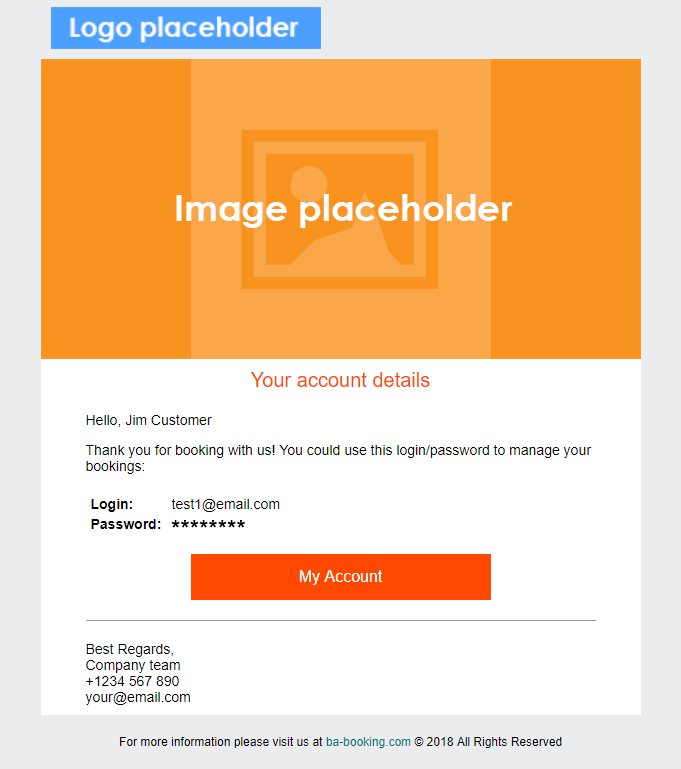
For new customer the account will be created and email sent with login details
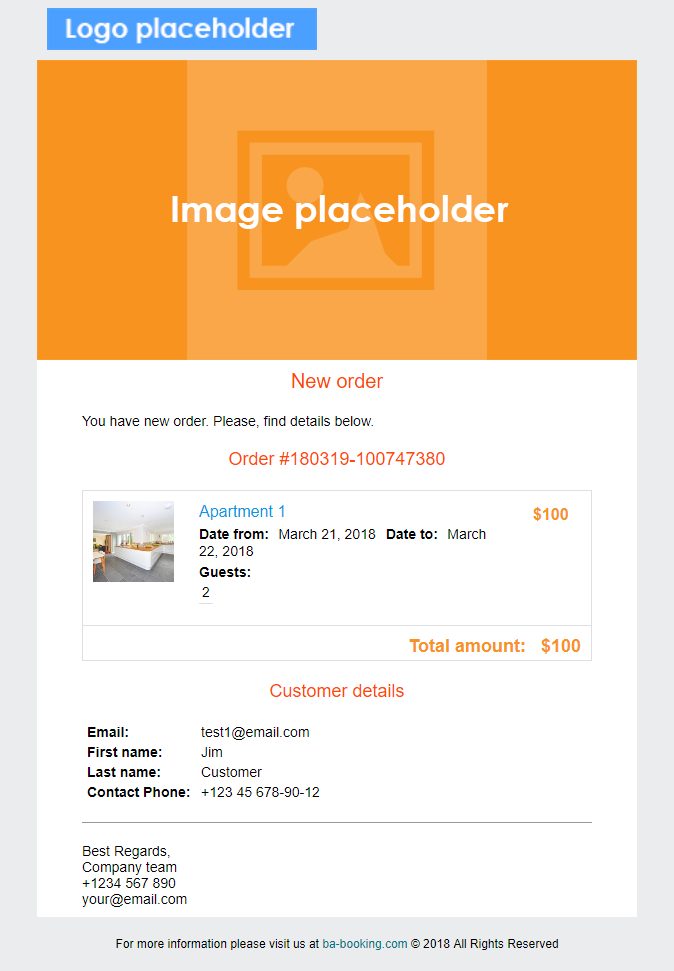
The New Order email is automatically sent to the site administrator whenever a customer creates a new booking.
Its purpose is to notify the admin team about incoming reservations and provide all essential order details for quick review.
This notification helps administrators:
- stay informed about new bookings in real time,
- quickly access order details,
- contact the customer if needed,
- and manage orders promptly from the admin dashboard.
The New Order email is triggered automatically when:
- a user completes the checkout process, and
- a new order is created in the system.