PDF invoices
The add-on generates a PDF invoice for each order. The invoice can be downloaded from the order page in the admin dashboard and attached to order e-mails.
Settings are located in the BA Settings → PDF Invoice admin menu.
/wp-admin/admin.php?page=babe-settings
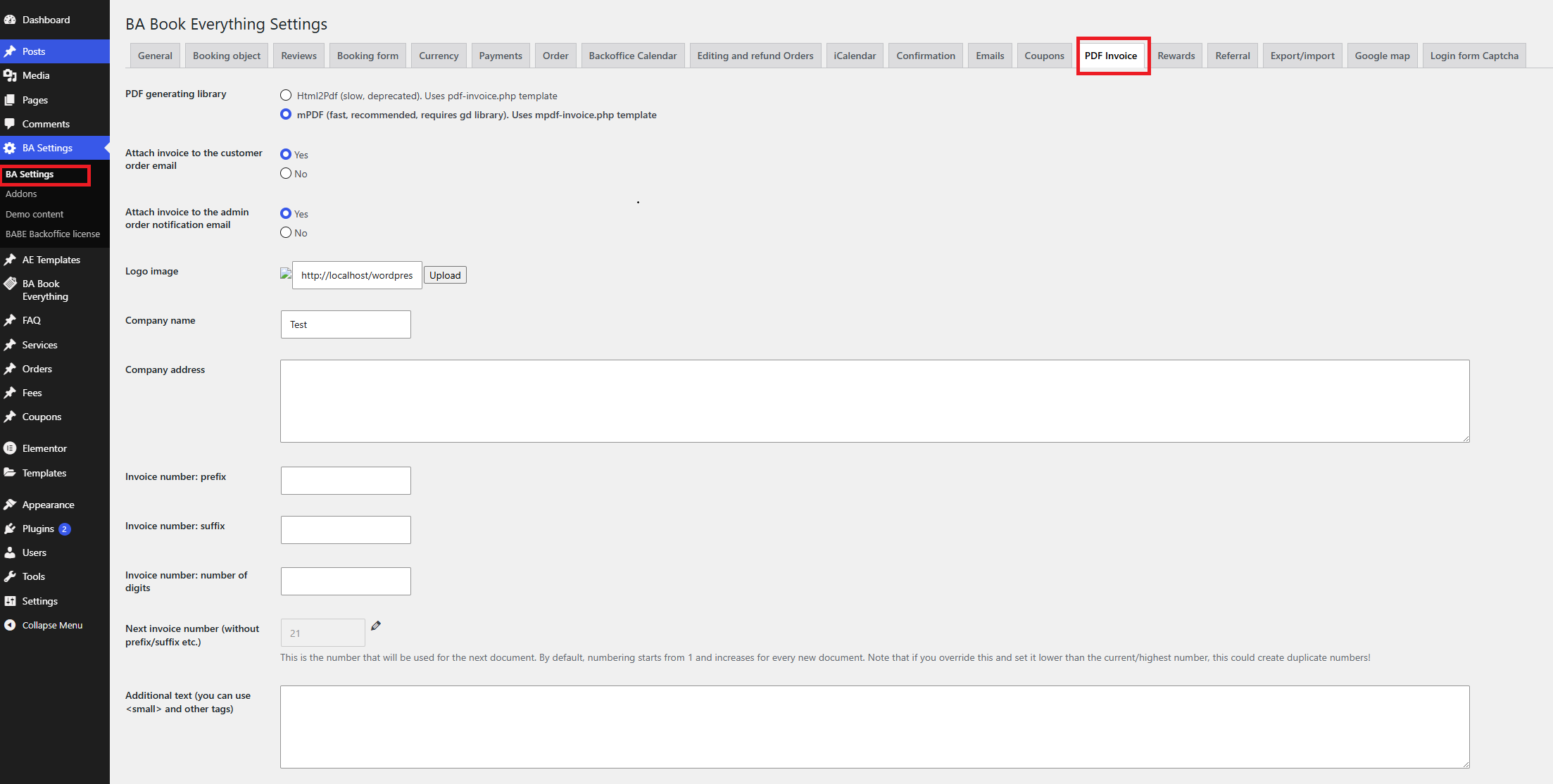
Settings
- PDF generating library — use mPDF library, since Html2Pdf is deprecated and will be removed in future updates
- Attach invoice to the customer order email — send the PDF invoice with the customer confirmation e-mail
- Attach invoice to the admin order notification email — send the PDF invoice with the admin notification e-mail
- Logo image — should be in PNG or JPG format
- Company name — used in the invoice header
- Company address — used in the invoice header
- Invoice number: prefix — text placed before the number (e.g.
INV-) - Invoice number: suffix — text placed after the number
- Invoice number: number of digits — zero-padding of the number (e.g.
0001). - Next invoice number — the next sequential number to be issued (without prefix/suffix).
- Additional text (you can use small and other tags) — is placed at the bootom of an invoice before the footer
- Footer text (copyright, etc.) — footer notes
Downloading an invoice
Open an order in the Orders admin menu and click the invoice link to generate and download the PDF.
PDF template customization
The PDF template can be overridden by copying it from wp-content/plugins/babe-backoffice/templates/mpdf-invoice.php to yourtheme/ba-book-everything/mpdf-invoice.php.
Developers can also change the PDF (Mpdf) settings using the apply_filters( 'babe_backoffice_pdf_invoice_mpdf_args', $mpdf_args_array, $order_id ) and apply_filters( 'babe_backoffice_pdf_invoice_default_font', $default_font_name ) hooks.