Login form Captcha
Protects the plugin's customer registration form on the My Account page from bots with a captcha challenge. Only visitors who are not logged in see and trigger the check, and it runs on the My Account page only — it never adds friction to the rest of the site.
/wp-admin/admin.php?page=babe-settings
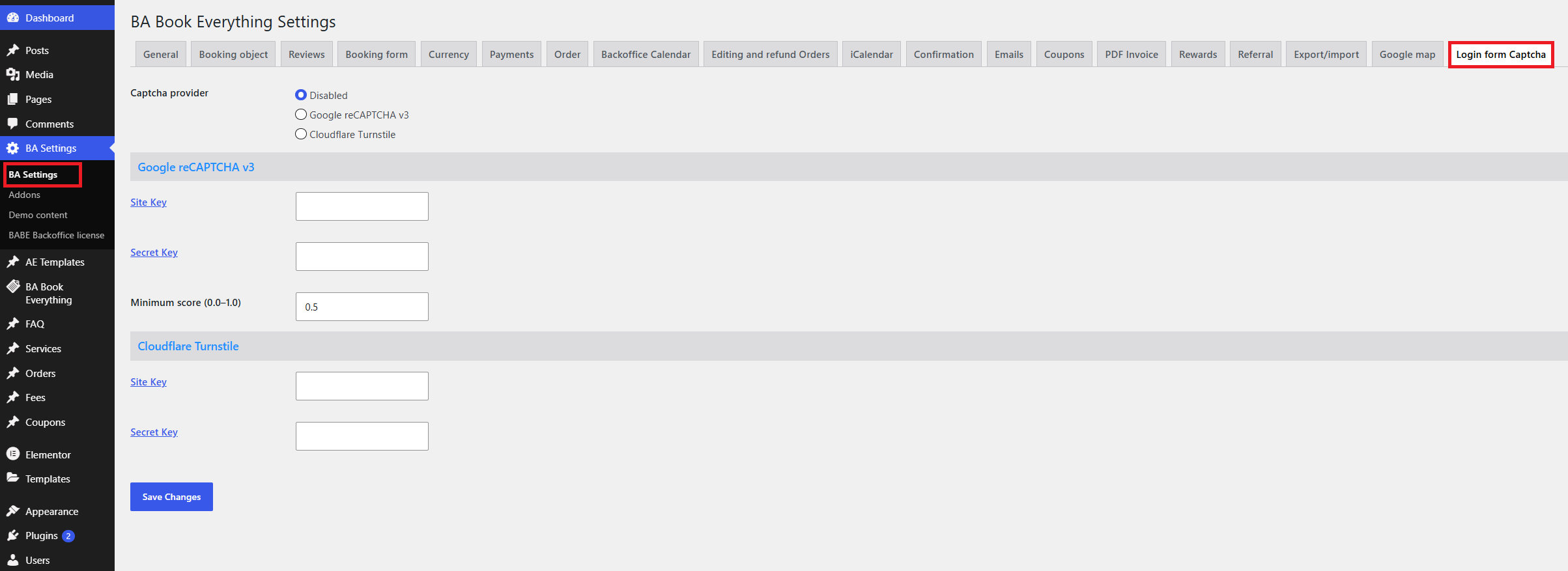
Settings
- Captcha provider - choose which captcha service to use, or disable it:
- None - captcha is turned off
- Google reCAPTCHA v3
- Cloudflare Turnstile
Google reCAPTCHA v3
- Site Key / Secret Key - credentials generated in the Google reCAPTCHA admin console.
- Minimum score (0.0–1.0) - the threshold below which a request is treated as a bot. reCAPTCHA v3 returns a score for each request (1.0 is very likely human, 0.0 is very likely a bot); a common starting value is
0.5.
Cloudflare Turnstile
- Site Key / Secret Key - credentials generated in the Cloudflare Turnstile dashboard.
info
The keys are issued by Google or Cloudflare for your specific domain. Make sure the domain registered with the provider matches the site where the plugin runs.
How it works
- When a provider is selected, a hidden token field is added to the registration form on the My Account page.
- Google reCAPTCHA v3 runs invisibly in the background — there is no checkbox or puzzle. It produces a token (automatically refreshed while the page is open) that is submitted with the form.
- Cloudflare Turnstile renders a lightweight widget in the form; once it passes, its token is attached to the submission.
- On submit, the token is verified server-side against the provider. For reCAPTCHA the returned score is compared with your Minimum score; for Turnstile the verification simply has to succeed.
- If verification fails (or the token is missing), the registration is silently blocked and no account is created. A genuine visitor can simply submit again.
tip
If captcha is enabled but the keys are empty or invalid, the form still renders but the challenge cannot be solved — always fill in both the Site Key and Secret Key for the chosen provider.